
An idea. A frame. Your next video.
VEED AI Video Generator
Give your next scene a starting point: a few words, a favorite image or footage you want to change. Explore the VEED AI workflow, then create with the models available in ImageLayered.
Create a video in ImageLayeredIndependent guide · Generation uses ImageLayered models and credits
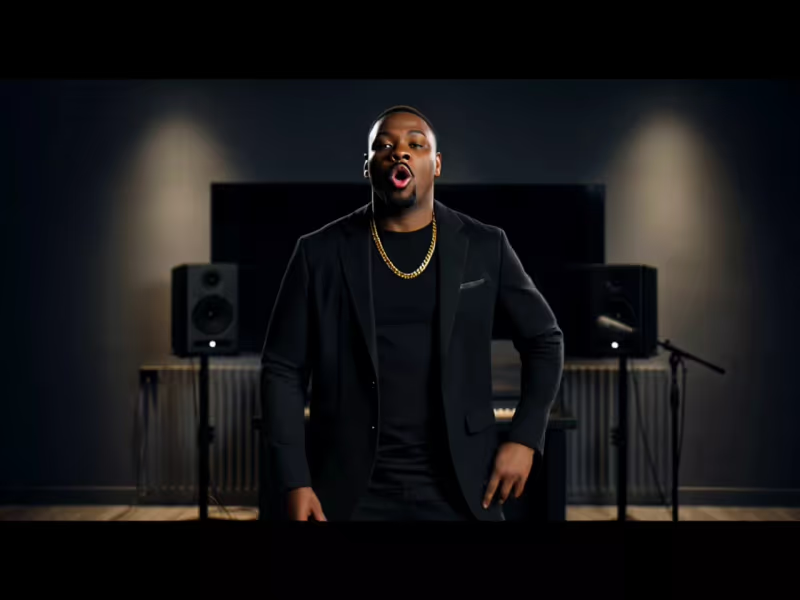
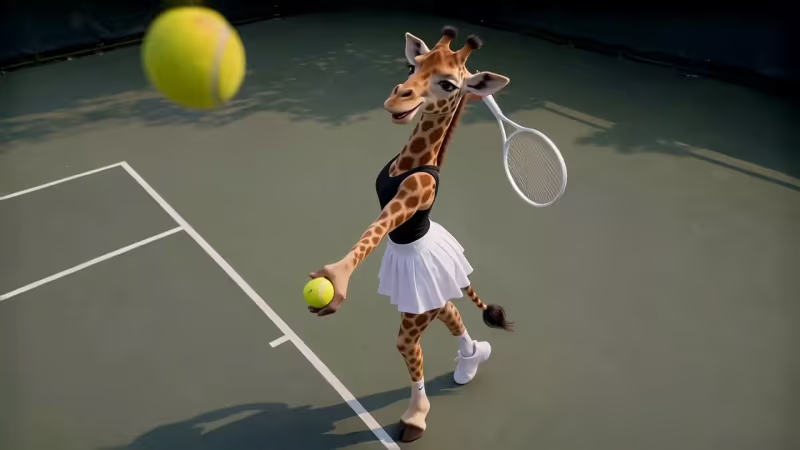
Visual inspiration from existing WaveSpeed model examples. These images are not VEED outputs or new ImageLayered test results.
From idea to frame
Explore the VEED AI Video Generator Features
A useful video workflow connects the first idea to the final edit. Understand where VEED fits, then choose a starting point in the ImageLayered workbench below.
Create a video in ImageLayeredCreate from a prompt or a picture
The VEED AI video generator brings multiple models into its creation workflow. Here, use Text to Video for a new scene or Image to Video when you already have a frame. Describe one action, a setting and a camera move. Choose from the live model list before generating.
Give a reference image a role
A product, character or illustration can help explain what your scene should contain. ImageLayered offers Reference to Video on supported models. Use a clear subject and keep the movement simple for your first attempt. Reference support and upload limits appear with the selected model.
Build an editing workflow around the clip
The VEED AI video generator connects to VEED’s editing tools. In ImageLayered, Video Edit changes supported footage through a prompt and optional references. Use it to explore a different subject, setting or visual style, then review the entire result before sharing.
Plan captions, speech and localization
VEED provides separate tools for subtitles and dubbing. Those tools can matter when your audience speaks more than one language. The ImageLayered workbench here creates or edits video; it does not include VEED Fabric, automatic subtitle translation or voice cloning.
Why Creators Explore VEED AI
Move from inspiration to a practical shot plan. Match the source material to the task, keep visual choices consistent and check the cost before you commit.
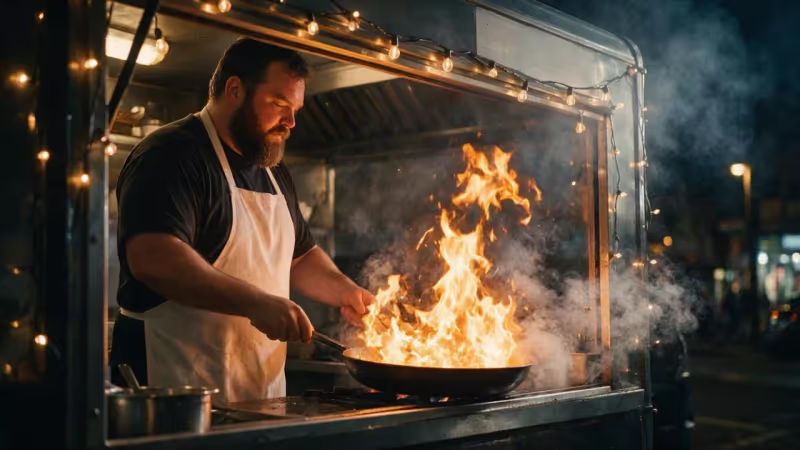 Text to Video
Start with the material you already have
A short product description suits Text to Video. A finished portrait suits Image to Video. Existing footage suits Video Edit. When researching the VEED AI video generator, first decide which input carries the most useful information. That choice is usually more helpful than adding another paragraph to an unfocused prompt.
Create a video in ImageLayered Image to Video
Keep a consistent creative direction
Write down the subject, palette, lighting and camera style before building several clips. Reuse a reference where supported, and change one instruction at a time. For example, keep the same product image while trying a slow camera push instead of a wide orbit. Always review faces, logos and small lettering in the output.
Create a video in ImageLayered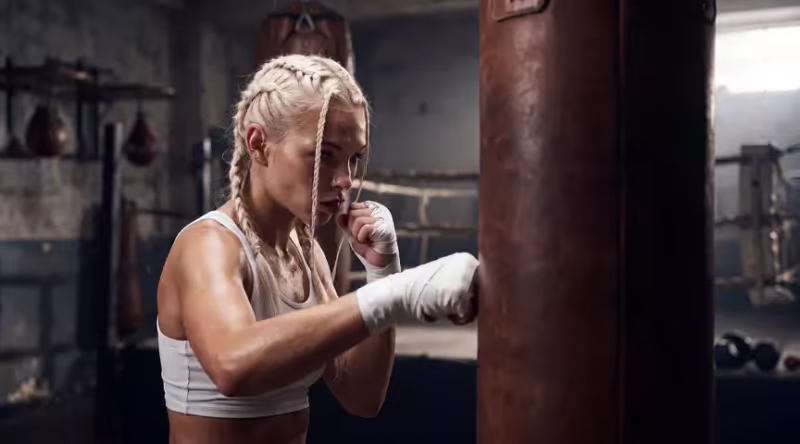 Model selection
Know the model and quote before generating
A VEED AI video generator comparison should include both the input requirements and the cost of an attempt. In ImageLayered, the selected model determines the available duration, resolution and settings. The workbench shows a credit quote before submission. Previewing the examples and preparing the form does not start a paid request.
Create a video in ImageLayeredCompare VEED AI Video Generator With Our Video Tools
Choose by the job you need to finish. The links below open ImageLayered tools, while VEED-specific editing and localization features remain on VEED.
| Workflow | VEED | ImageLayered |
|---|---|---|
| Text to Video | Prompt-based creation through its model selection. | Describe a scene and use an available text-to-video model. |
| Image to Video | Image-based generation within its creation tools. | Upload a starting frame and describe movement. |
| Reference to Video | Reference inputs depend on the selected VEED workflow. | Guide supported models with reference images. |
| Video Edit | An editor with timeline and caption tools. | Transform supported footage with a model and prompt. |
| Video Extend | Check the current model and editor capabilities. | Continue a source clip with a supported extension model. |
VEED product information · Checked November 25, 2026. Model availability and plan terms can change; confirm current VEED details on its official site.
How to Use This VEED AI Video Generator Guide
Follow four stages to turn an idea into a clip with ImageLayered. If you need VEED’s own editor, use the official product link above.
Choose your starting point
Open the workbench and select Text to Video, Image to Video, Reference to Video, Video Edit or Video Extend. Match the mode to your actual source material.
Describe the shot and choose a model
Add your prompt and any required media. Pick a model, then check the supported duration, aspect ratio and resolution. Keep the first shot focused on one clear action.
Review the quote and generate
Sign in, check your balance and read the credit quote before submitting. Generation starts only after you press the generation button. Keep the task available while it processes.
Review, download and prepare to share
Watch the completed result, then download it. Check the subject, motion and any text. Add captions or further editing in your chosen editor if your project needs them.
Creative Ideas to Try With Your Next Video
Use these planning examples as starting points. They describe possible workflows rather than customer testimonials or guaranteed results.
A product in motion
Start from a clean product photo and request a slow camera move. Keep the background simple so the item stays easy to recognize.
ProductA social opening shot
Write a short visual hook with one subject and one action. Make room in the composition for the caption you will add later.
SocialAn illustrated character
Animate an illustration with a small gesture or a change of expression. Review the silhouette and details after the movement.
CharacterA refreshed scene
Use existing footage to explore a new setting or style. Keep a copy of the original so you can compare continuity and pacing.
Video editFAQs on the VEED AI Video Generator
Is the VEED AI video generator free to use?
VEED’s free access depends on its current plan, region and AI credit availability. On ImageLayered, browsing this guide and preparing a prompt are free. Actual generation uses the credits shown in the workbench; check your balance and quote before submitting.
Which AI models can I use on this page?
The workbench lists models currently published in ImageLayered. The available models and settings change with your chosen mode. These are ImageLayered integrations, and the list does not represent every model in the VEED AI video generator.
Can I make a video from a photo?
Yes. Choose Image to Video, upload a supported image and describe its movement. Use Reference to Video instead when your images should guide a scene rather than define the opening frame. Check the chosen model’s input requirements before submitting.
Does this page include VEED Fabric, subtitles or dubbing?
VEED Fabric and VEED’s subtitle and dubbing tools are not integrated here. Visit VEED for those features. This page provides an independent VEED AI video generator guide and the existing ImageLayered video creation workbench.
Can I use the videos commercially?
Check the terms for the selected model and any source material you upload. Make sure you have the necessary rights to images, footage, music and recognizable branding. Review the final output before publishing it in a commercial project.
Is this the VEED io AI video generator?
The official VEED AI video generator belongs to veed.io. This page is operated by ImageLayered and is not affiliated with VEED. Its generation controls submit to ImageLayered’s supported models, with ImageLayered pricing and task handling.
Create Your Video in ImageLayered
Choose an input, explore the available models and check your quote. Switching modes keeps you on this guide.
Credits are charged when a task is created. Failed or timed-out tasks are refunded automatically.
Rainy road trip
Prompt and recorded settings
crisp quick natural pacing no slow motion, film grain soft muted tones, young curly-haired guy in brown suede jacket, dark tee, olive green pants, slouched inside vintage beige fabric car, one hand on steering wheel, other arm laid over passenger seat, rainy forest trees outside window with water droplets, subtle natural light shift, gentle slight camera pan, soft earthy retro color grading, delicate fabric & rain drop texture details, calm laid-back road trip vibe, sharp realistic skin and suede textures
Resolution: 720p · Duration (seconds): 5 · Generate audio: true
Previewing examples and filling the prompt and settings is free. Upload your own images or source video where needed; only clicking Generate creates a charged task. Any settings not recorded for this example use the model defaults.
Turn Your Next Idea Into a Video
Use the VEED AI video generator guide to plan the workflow. Start your own clip with text, an image or footage in ImageLayered.
Create a video in ImageLayeredVEED is a trademark of its respective owner. ImageLayered is independent and is not affiliated with or endorsed by VEED.