Kling 4.0 · Five ways to create
Kling4 Video Generator
Bring an idea, a photo or a video. Kling4 Video Generator turns text and images into clips, edits existing footage, and continues a scene with a new segment. Start with Kling 4.0 at 720p for 5 seconds, then adjust your settings.
Credits are charged when a task is created. Failed or timed-out tasks are refunded automatically.
A serious studio portrait
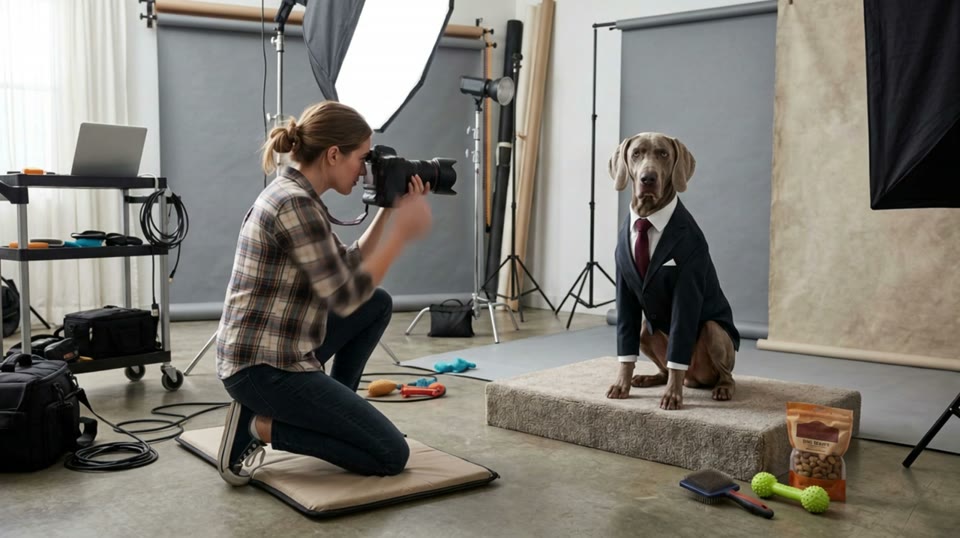
Prompt and recorded settings
The photographer raises the camera and tries to get the dog to smile by shaking a toy. The dog remains completely serious. She tries a treat. The dog slowly adjusts its tie with one paw and continues staring directly into the camera. She lowers the camera in disbelief. The camera begins from her shooting position, then gently pushes toward the dog’s deadpan expression. Sophisticated visual comedy, realistic animal movement, polished studio lighting.
Duration (seconds): 5 · Resolution: 720p
Previewing examples and filling the prompt and settings is free. Upload your own images or source video where needed; only clicking Generate creates a charged task. Any settings not recorded for this example use the model defaults.
Watch · Explore · Create
Kling4 Video Generator examples
Explore the five workflows, preview the recorded prompts and fill supported settings into the workspace. Upload your own source images or video before creating.
Kling 4.0 · Text to Video
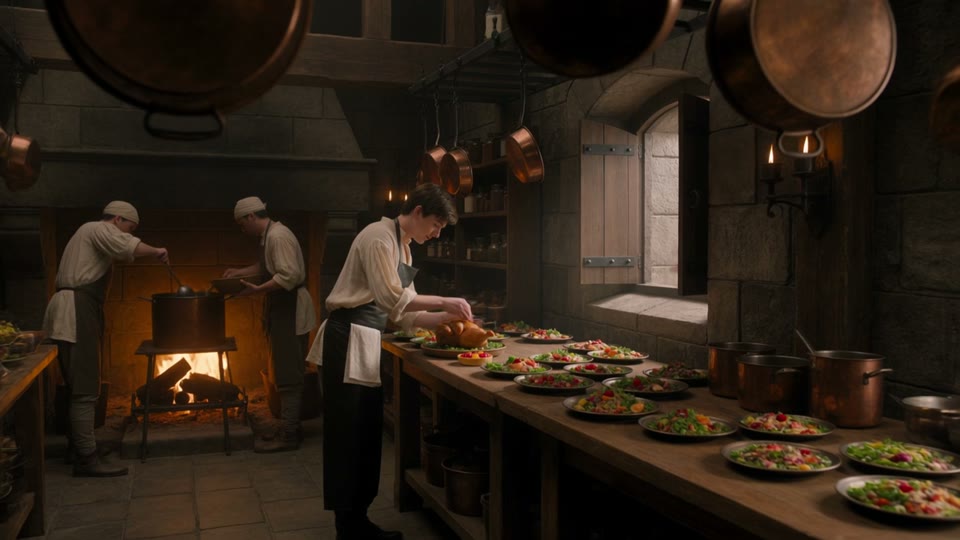
A dragon at the castle kitchen
Source: WaveSpeedPrompt and recorded settings
A young royal chef stands inside a huge medieval castle kitchen, wearing a cream tunic and dark leather apron while dozens of elaborate dishes cover a long wooden table. A small dragon suddenly pushes its head through an open stone window. Everyone in the kitchen freezes. The chef cautiously offers it a roasted chicken. The dragon ignores it completely. He nervously raises a tiny fruit tart instead. The dragon’s eyes immediately brighten and it gently reaches toward the dessert. The camera begins behind hanging copper pans, tracks toward the chef, then pushes past him toward the dragon outside the window. Playful Western fantasy, detailed medieval kitchen, expressive creature behavior, cinematic comedy, realistic food and firelight.
Duration (seconds): 5 · Resolution: 720p · Aspect ratio: 16:9
Kling 4.0 · Image to Video
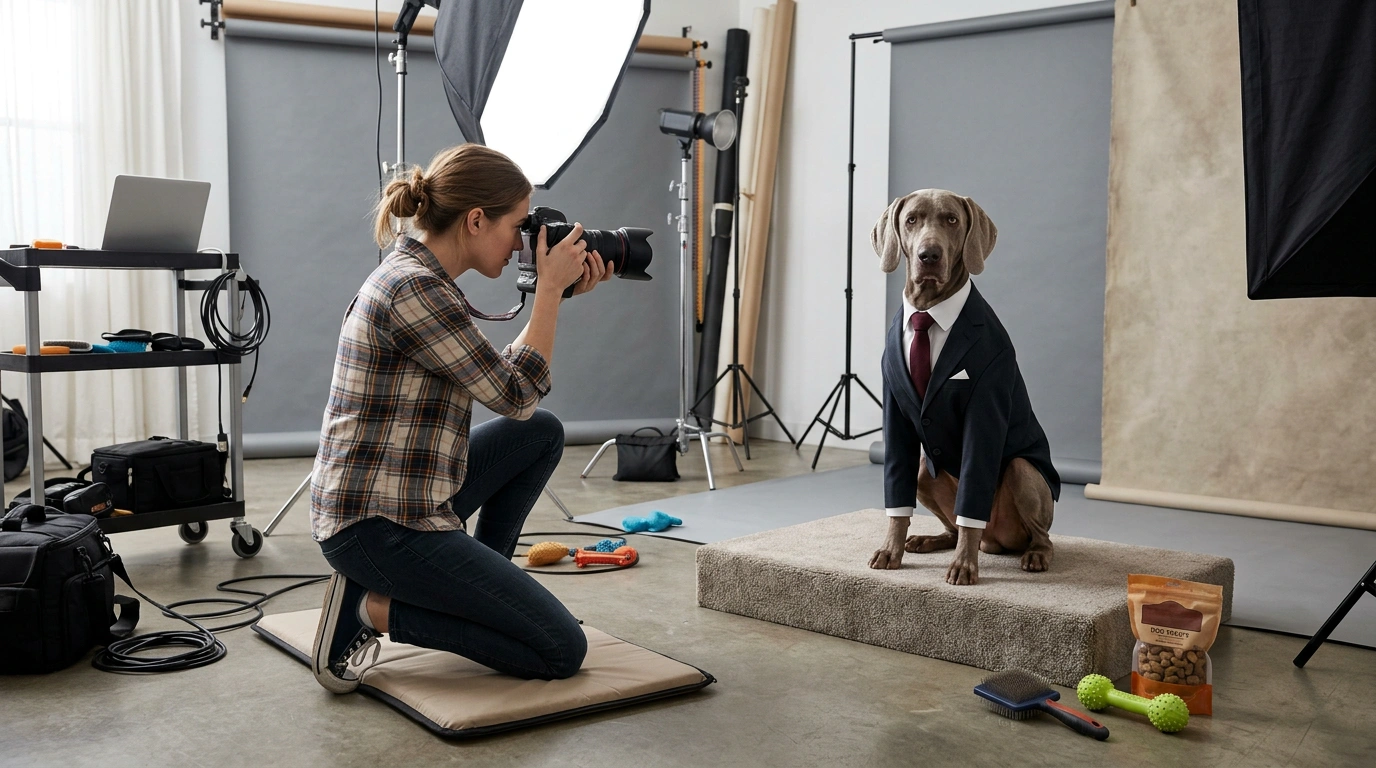
A serious studio portrait
Source: WaveSpeedPrompt and recorded settings
The photographer raises the camera and tries to get the dog to smile by shaking a toy. The dog remains completely serious. She tries a treat. The dog slowly adjusts its tie with one paw and continues staring directly into the camera. She lowers the camera in disbelief. The camera begins from her shooting position, then gently pushes toward the dog’s deadpan expression. Sophisticated visual comedy, realistic animal movement, polished studio lighting.
Duration (seconds): 5 · Resolution: 720p
Kling 4.0 · Reference to Video
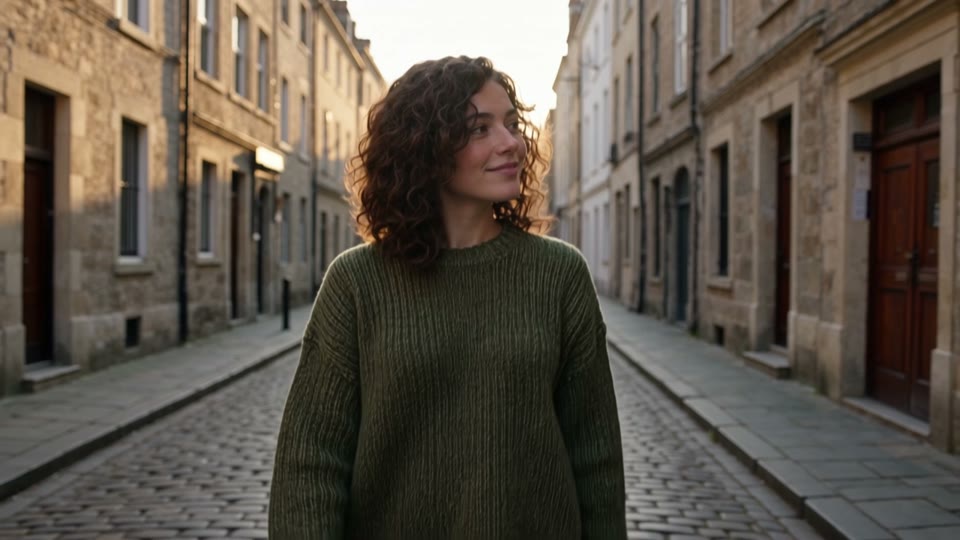
Golden-hour walk
Source: WaveSpeedPrompt and recorded settings
The woman from @Image1 walks along a quiet cobblestone street at golden hour, smiling and looking around, cinematic tracking shot, soft footsteps and distant city sounds
Duration (seconds): 5 · Resolution: 720p · Aspect ratio: auto
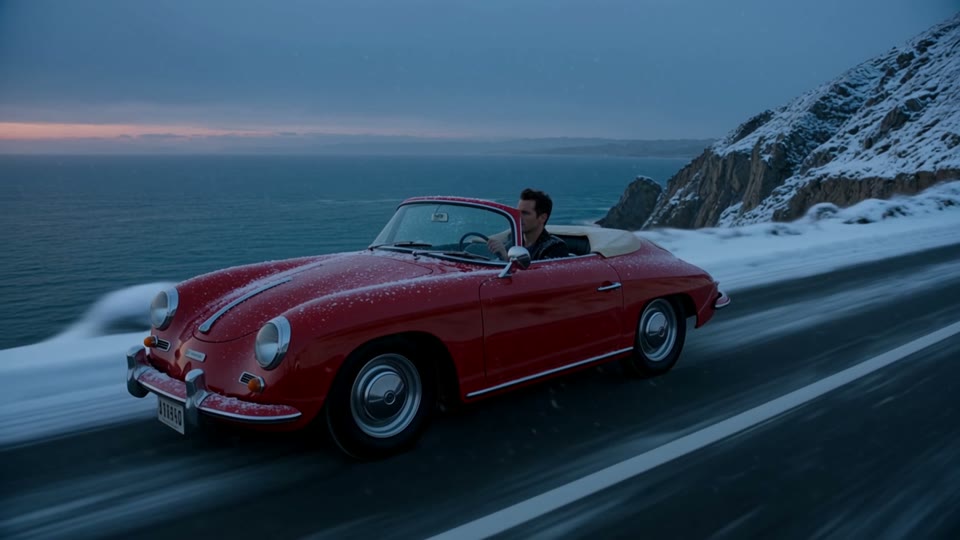
Kling 4.0 · Video Edit
A snowy winter road
Source: WaveSpeedPrompt and recorded settings
Turn it into a snowy winter evening: snow covers the road and the cliffs, snowflakes fall through cold blue light. Keep the car and its motion exactly as they are.
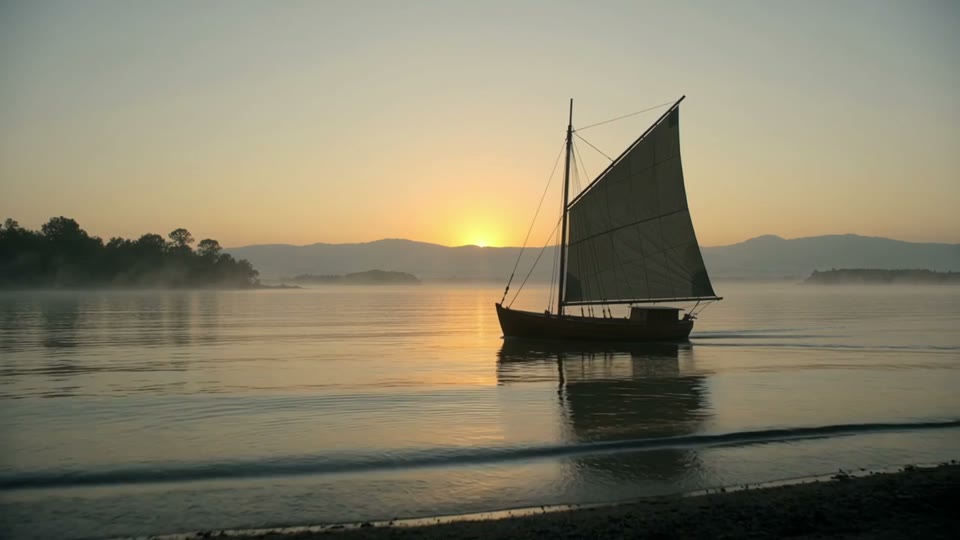
Kling 4.0 · Video Extend
Continue the sailboat scene
Source: WaveSpeedPrompt and recorded settings
The sailboat keeps gliding forward as the camera slowly rises above the water, revealing a quiet harbor; gulls cross the golden sky, soft wind and gentle waves.
These are WaveSpeed demonstrations for the corresponding Kling 4.0 endpoints, not ImageLayered test results. Source links are preserved. Filling a prompt does not generate a video or spend credits.
Five workflows in Kling4 Video Generator
Switch modes inside the same workspace. Inputs and controls follow the workflow you choose.
Text to video
Describe the action, camera movement and sound. Choose 3–30 seconds, 720p or 1080p, and 16:9, 9:16, 1:1 or 21:9. Use Kling4 Video Generator for a new scene from a written idea.
Image to video
Animate a JPG or PNG as the opening frame. Add an optional ending image to guide the finish; the output follows your first frame’s aspect ratio. A text prompt is optional.
Reference images to video
Use 1–10 images to guide subjects and style. Mention @Image 1, @Image 2 and so on in your prompt. This version of Kling4 Video Generator accepts image references; video and audio references are not available yet.
Video editing
Upload a 3–30 second MP4 and describe what should change. Add up to 10 optional reference images. Keep the original soundtrack or generate new synchronized audio; output framing and duration follow the source.
Video extension
Continue from your source clip’s final frame. Choose 3–30 additional seconds and optionally upload a target ending image. Kling4 Video Generator returns your original clip joined to the new segment.
How to use Kling4 Video Generator
Choose your workflow
Kling 4.0 is selected when you arrive. Start with an image, switch to text, add reference images, or upload an MP4 to edit or extend.
Describe the next moment
Explain action, camera direction, lighting and sound. For an edit, state what changes and what should stay consistent. For an extension, describe what happens after the final frame.
Review credits and create
Choose the resolution and available duration. Review the exact credit quote before submitting, then preview and download your completed MP4.
Kling4 Video Generator credit pricing
Credits follow the existing ImageLayered pricing rule. The workspace shows the exact amount before you create. The table uses the current published model configuration; editing examples assume the input and output have the same duration.
| Seconds | Create / extend · 720p | Create / extend · 1080p | Edit · 720p | Edit · 1080p |
|---|---|---|---|---|
| 5s | 61 credits | 91 credits | 73 credits | 109 credits |
| 10s | 121 credits | 181 credits | 145 credits | 217 credits |
| 15s | 182 credits | 272 credits | 217 credits | 326 credits |
| 30s | 363 credits | 543 credits | 434 credits | 651 credits |
Creation prices cover text, image and image-reference workflows. Extension prices cover only the newly generated segment: extending a 10-second clip by 5 seconds charges for 5 seconds, not 15. Source video duration is checked on the server.
Get clearer results with Kling4 Video Generator
Keep motion focused
Give a short scene one clear action and a deliberate camera move. Describe enough movement for the chosen duration without compressing a long story into a few seconds.
Use clean source media
Choose clear images with a visible subject. For editing, upload a regular MP4 under 50 MB. This workspace currently accepts source videos from 3 to 30 seconds.
Guide the ending
Use an optional final image in image-to-video or video extension. Describe a transition that connects naturally to that target frame.
Kling4 Video Generator FAQ
What can Kling4 Video Generator do?
Kling4 Video Generator provides five workflows with Kling 4.0: text-to-video, image-to-video, reference images to video, video editing and video extension. All five use the shared ImageLayered video workspace.
Which durations and resolutions are available?
New clips and added segments support 3–30 seconds in whole seconds at 720p or 1080p. Video editing follows the uploaded clip’s duration. For editing and extension, this workspace currently accepts 3–30 second MP4 sources under 50 MB.
Does Kling4 Video Generator support keyframes and audio references?
This release supports an opening image, an optional final image and image references as appropriate for each mode. Intermediate keyframes, reference videos and reference audio uploads are not available in this release.
How does video extension pricing work?
Kling4 Video Generator charges only for the additional generated seconds. The returned MP4 includes the original clip and the added segment. An optional ending image does not add a separate charge.
Can I preserve the sound in an edited video?
Yes. Video Edit keeps the original soundtrack by default. Turn off Keep original audio to generate new synchronized sound. Video extension retains the source soundtrack and generates sound for the new segment.
Can I leave Kling4 Video Generator while a task is running?
Yes, once the task has been created. Processing continues in the background. Sign in with the same account to recover your latest video task from the past 24 hours. Completed outputs are available in Recent generations for 30 days.
What happens if the video fails?
Failed tasks and tasks that exceed the 30-minute deadline receive an automatic credit refund. Only one generation can run on your account at a time across tools. Free users queue; paid users skip the queue.
Are these examples ImageLayered test results?
No. The examples are demonstrations from the corresponding Kling 4.0 model pages on WaveSpeed, with their sources preserved. Previewing or filling a prompt in Kling4 Video Generator is free; only submitting a generation creates a charged task.
Explore other video workflows
Use the shared video workspace to compare available models for each workflow.