AI Image Extender
Expand your image. Give your story more room.
About this tool
Turn a tight crop into a wider scene with our AI image extender. Upload a photo or illustration, choose your canvas, and let AI generate the missing surroundings. Create space for a headline, adapt a landscape to a portrait layout, or give your subject a little breathing room. Each extension costs just 1 credit, with JPG, PNG and WebP downloads.
One Image. Four New Ways to Frame It.
See the AI image extender take the same lakeside illustration from a small original into four different canvas sizes. Compare the new surroundings, the balance of the scene, and the space each aspect ratio creates.

Every example starts with this same 640 × 427 illustration. The AI image extender generates additional scenery to suit each target canvas, giving one image several useful compositions.
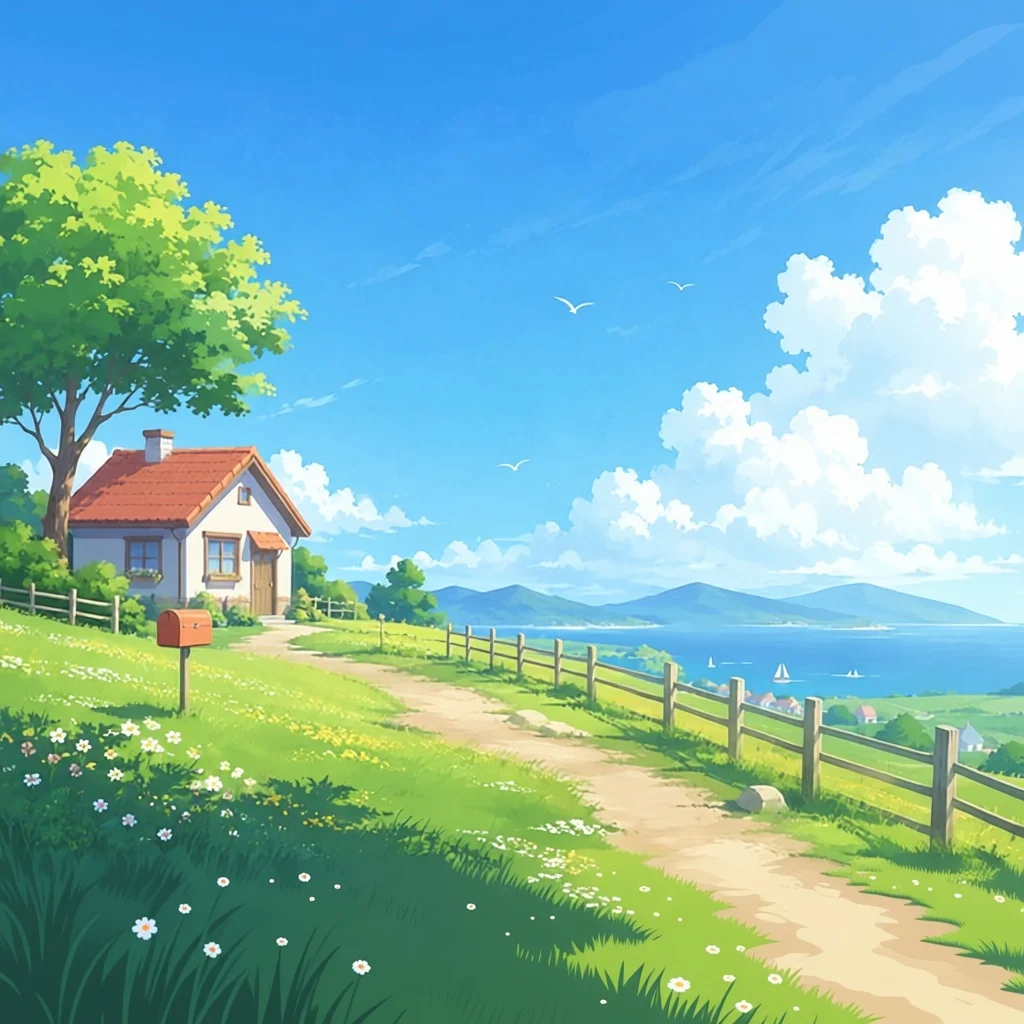
Square composition
1:11024 × 1024 px
A balanced square for a feed post or cover tile. The AI image extender adds room around the original scene so it can sit comfortably in a new shape.
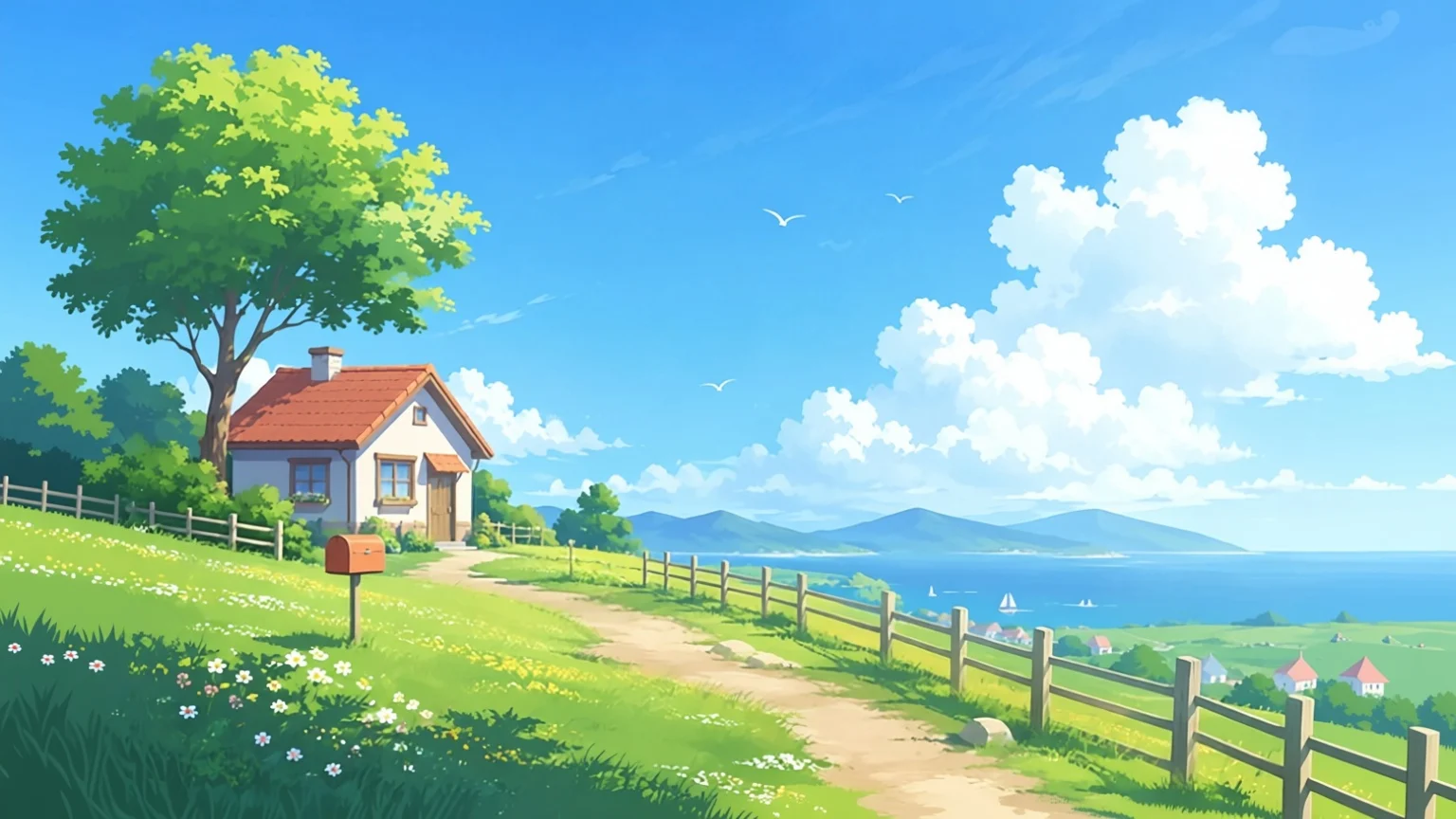
Wide landscape
16:91536 × 864 px
A wide canvas for a video thumbnail, presentation or website banner. More horizontal space lets the landscape breathe and leaves room for a short title.
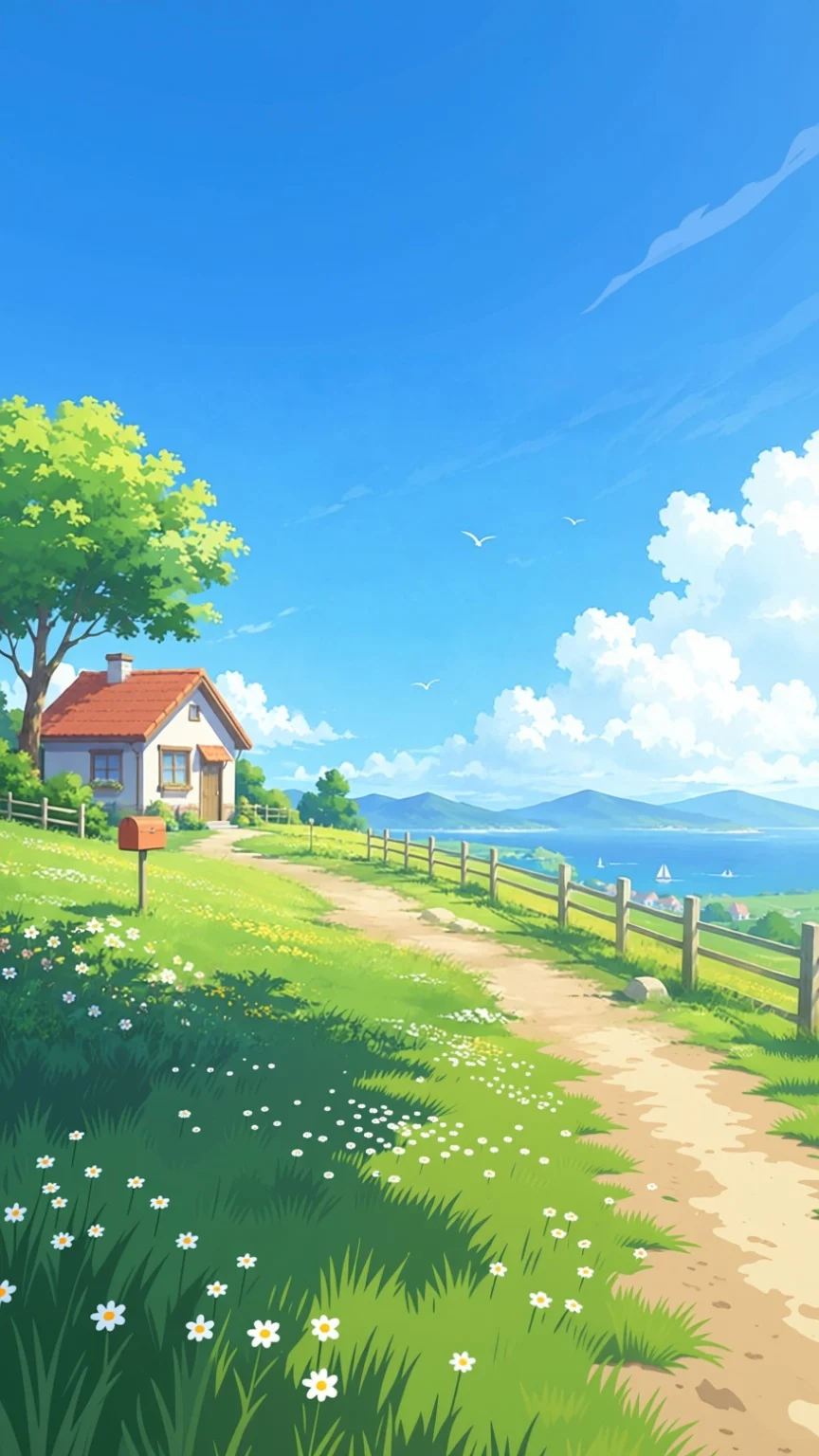
Tall portrait
9:16864 × 1536 px
A vertical canvas for a story, mobile cover or poster. The AI image extender imagines more of the scene above and below the original composition.
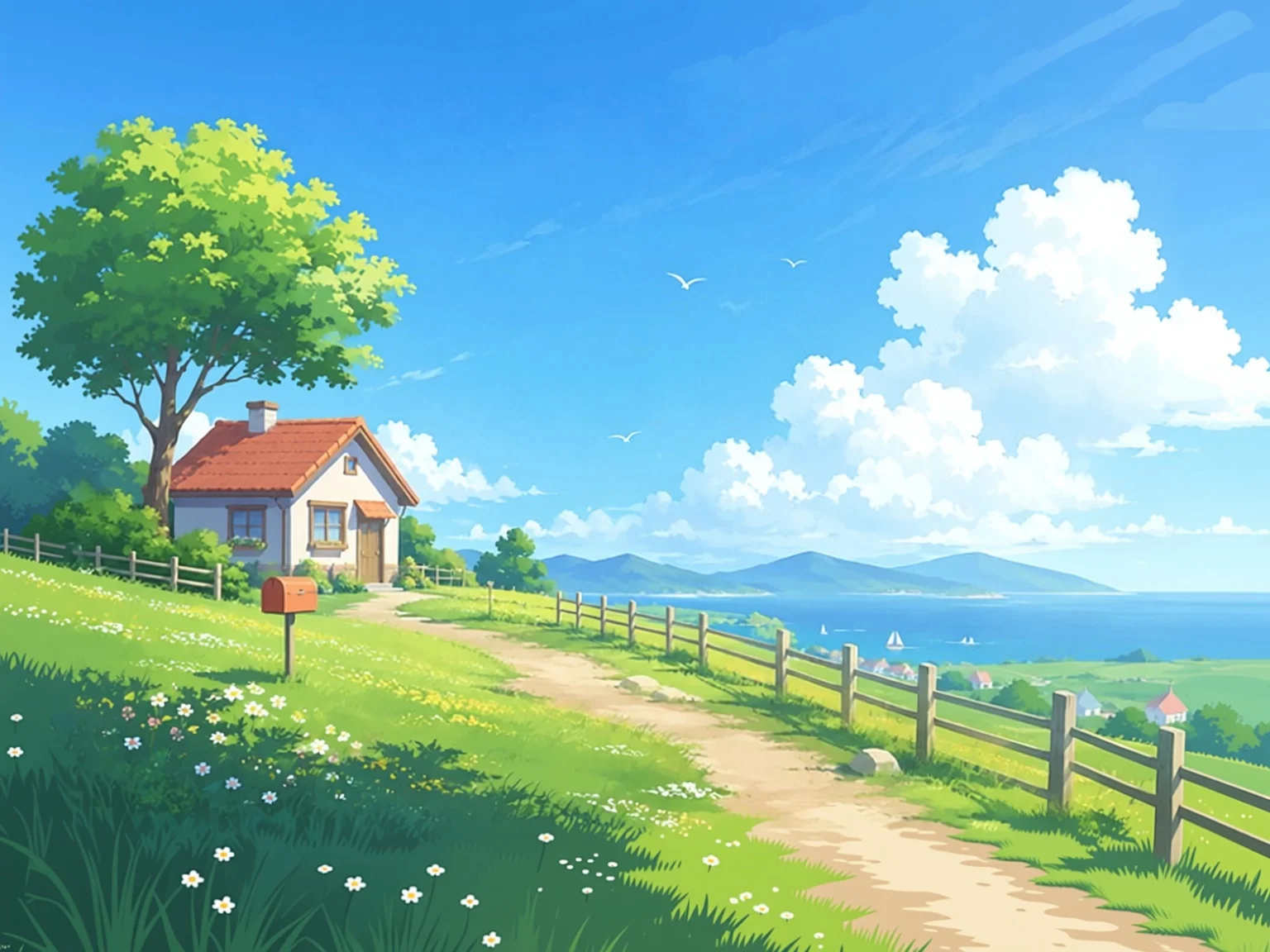
Classic landscape
4:31536 × 1152 px
A spacious 4:3 layout for a slide or editorial image. The expanded surroundings help the same illustration work in a less tightly cropped design.
Real outputs from the same source image. AI generates new content; details and composition can vary between runs.
How to Use the AI Image Extender
Start with an image you already like, choose the space you need, and download a new composition. The AI image extender works in your browser with no prompt to write and no canvas editor to learn.
Upload your starting image
Choose a JPG, PNG or WebP file up to 10MB. Use a clear photo or illustration with enough background to show the setting, lighting and style. The AI image extender uses those visual clues to imagine what could continue outside the frame. Preview your upload first, and change the image if the crop hides important parts of the subject.
Pick a ratio or custom size
Choose one of seven aspect ratios, from a square 1:1 to a wide 16:9 or tall 9:16. You can also enter an exact width and height between 256 and 1536 pixels per side. Select JPG, PNG or WebP, then click Extend Image. Every canvas size has the same 1 credit price; the AI image extender returns one result for each generation.
Review and download the result
Check the newly generated surroundings, especially near the edges of buildings, faces and objects. Download the result while the page is open, then add text or final design elements in your usual editor. Generations are not saved to your account history and download links expire. If you want another composition, change the dimensions and generate again for another 1 credit.
Why Use This AI Image Extender?
A practical way to expand image backgrounds, explore fresh compositions and fit an existing visual into the layout you need. The AI image extender adds new surroundings based on the image itself.
Context-aware outpainting
The AI image extender looks at the visible scene and generates content beyond its boundaries. Sky, ground, foliage and other surrounding details can continue into the new space with a similar visual style. This is useful when the original photo feels cramped. Because the new area is generated, inspect the result instead of assuming it shows what was actually outside the camera frame.
A canvas that fits your layout
Seven ratio presets cover square, landscape and portrait compositions, while custom dimensions let you choose the exact canvas size. Use the AI image extender to plan a social post, a slide image or a cover before you start placing text. The width and height controls show the requested pixel dimensions, so you can pick a size that works with your destination.
One clear credit price
Each AI image extender generation costs 1 credit, regardless of the supported size or download format you select. New accounts receive 2 welcome credits, enough to try two extensions. Free generations enter a queue, and paid accounts skip it. A failed submission is refunded, and failed or timed-out tasks are refunded when the page checks their result.
Three flexible file formats
Download JPG for everyday photos, PNG when you prefer a lossless file format, or WebP for a compact image suited to websites. The AI image extender lets you choose the format before generating. PNG output does not automatically mean a transparent background: this tool expands the scene with new image content. Use the background remover if you need a cutout with transparency.
Make More From an Image You Already Have
An AI image extender is useful whenever a good image has the wrong crop for its next destination. Keep the starting idea, explore a larger scene, and build your layout around the result.
Social posts, stories and covers
A landscape photo can look awkward inside a vertical story, and a portrait can leave too little room for a square feed graphic. Use the AI image extender to create a canvas with the right proportions before adding captions or stickers. Compare a square and a tall version of the same upload, then choose the framing that gives the subject the clearest presence. Keep important faces and text away from the edges that a social app might crop later.
Website banners and thumbnails
A strong image may still be too narrow for a website hero or video thumbnail. The AI image extender can add surrounding scenery to give the layout more room. Try a 16:9 canvas for a thumbnail or a custom wide size for a banner. After downloading, place the headline in an area with a simple background and check contrast at the actual display size. Add lettering in your design tool so the words stay clear and editable.
Product scenes and campaign layouts
A tight product shot often needs more space for an offer, logo or campaign message. An AI image extender can create additional background around a still-life scene and help you explore different layouts from a single starting image. Review product shapes, labels, shadows and reflections carefully, since AI may reinterpret fine details. For a listing that must show the product exactly, compare the result with the original and finish any required corrections before publishing.
Illustrations, slides and mood boards
Use the AI image extender to open up an illustration, give a landscape a wider horizon, or adapt a piece of artwork to a presentation slide. This can help when the original visual has the right mood but lacks space around the subject. Generated areas follow the available visual context, so painterly scenes, simple environments and clear lighting can provide useful starting points. Treat the output as a new creative version and review it for unexpected additions.
Get Better Results From Your AI Image Extender
Good source images make the intended scene easier to understand. These small choices help the AI image extender produce a composition that is easier to use, while keeping your expectations grounded in what AI outpainting can do.
Start with a clean original
Upload the best version you have, rather than a screenshot of a screenshot. Compression blocks, heavy filters and blur can carry into the generated surroundings. A clean source gives the AI image extender stronger clues about textures and light. If the file is large, export a good-quality JPG, PNG or WebP within the 10MB upload limit before starting.
Keep some background context
A face or object cropped against the edge gives AI less information about the surrounding scene. When possible, start with an image that includes a little sky, wall, ground or landscape around the subject. The AI image extender uses that context to continue the setting. It cannot recover the true contents of areas that were never captured in the original image.
Choose your final ratio first
Think about where the image will appear before generating. A square feed tile, a tall story and a wide banner need different arrangements of visual space. Pick the closest preset, or enter a custom size for your layout. The AI image extender changes the canvas shape; stretching the downloaded image afterward can still distort the subject, so resize proportionally.
Expand with a clear purpose
Decide whether you need more sky, extra surroundings, or simply a less cramped composition. A much larger canvas asks the model to invent more of the scene and can introduce more unexpected details. Start with the size your design needs, review the result, and adjust if necessary. Each AI image extender attempt is a separate generation charged at 1 credit.
Inspect lines and fine details
Look closely at rooflines, fence posts, limbs, faces and repeating patterns. These can reveal inconsistencies even when the overall image looks convincing. An AI image extender is useful for creative reframing, but generated geometry can still need a final edit. Check the full-size download and compare important features with your source before using it in a finished project.
Finish text after downloading
Add logos, headlines and precise typography in a design editor after the extension is complete. This keeps your message editable and avoids relying on AI to preserve tiny lettering. Save your AI image extender result promptly, because there is no account gallery to restore it from later. Keep the original too, so you can revisit another size without losing your starting image.
AI Image Extender FAQ
Answers about image outpainting, canvas sizes, pricing and downloads.