
Seedream 5.5 Image Generator & Editor
Create from a prompt. Rework a photo. Keep your ideas moving.
About this tool
Use Seedream 5.5 for text-to-image generation and reference-image editing in one workspace. Describe a scene, design a transparent asset, or upload your own photos and explain the changes. Start with 10 welcome credits after registration; the button shows the full price before each generation.
Your result
Recent generationsYour generated or edited image will appear here. Choose a mode, add a prompt, and check the price before you start.
Seedream Image Examples
Explore text-to-image ideas and before-and-after editing references. Switch tabs to compare the two workflows, then load an example prompt into the workspace.

Seedream 5.5 · 1
A cozy street-side cafe in Lisbon at golden hour, a barista handing a cup of coffee across the counter, warm natural light, blue azulejo tiles, a chalkboard menu written in English, photorealistic, shot on 35mm
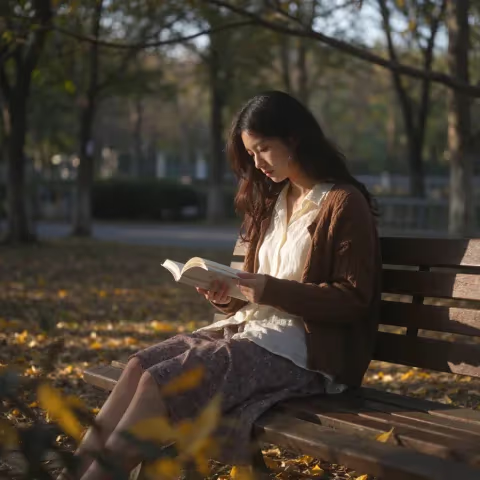
Seedream 5.5 · 2
A young woman reading a book on a sunlit park bench in autumn, golden leaves on the ground, soft afternoon light, natural candid photo, photorealistic, shot on 50mm

Seedream 5.5 · 3
A minimalist skincare product shot: a frosted glass serum bottle with a wooden cap on a wet travertine stone, soft morning light, water droplets, shallow depth of field, clean beige background, commercial photography
Official WaveSpeed reference examples from Seedream 5.5 text to image and Seedream 5.5 Edit. These are not outputs tested on ImageLayered. Your results will vary with your prompt and references.
How the Seedream Image Generator Works
Move from a clear visual brief to a downloadable image in three steps.
Choose generation or editing
Select Text to Image to create a new visual with Seedream 5.5. Choose Image to Image to edit uploaded photos with Seedream 5.5. The mode label tells you which version is active. For edits, upload one to ten JPG, PNG or WebP references, each up to 10 MiB. Use clear, relevant photos rather than many unrelated images.
Describe the image you need
Write a prompt that names the subject, setting, composition, light and visual style. For an edit, separate the requested change from the details to preserve: “Replace the plain wall with a warm studio backdrop; keep the face, pose and jacket.” Choose an aspect ratio for the intended placement. In either mode, also choose resolution, format and background.
Check the quote and save the result
Review the credit amount on the Generate button before submitting. Free-tier requests may enter a countdown queue. Once the image is ready, inspect important details and download a local copy. Results are also saved to Recent generations for 30 days. A failed or timed-out generation is refunded automatically; check that page if a connection drops.
Seedream Generation and Editing Features
Controls for practical image work, with the differences between the two modes made explicit.
Photographic scenes from text
Seedream 5.5 turns a written brief into a new image. Describe materials, camera framing, weather and light to explore product scenes, portraits or environments. Use 1K or 1.5K while refining your prompt, then choose 2K when you want more detail. Both lower tiers have the same credit price.
Native transparent PNG
In either mode, set the background to Transparent and keep PNG selected. This requests an image with an alpha channel for assets you can place on another design. Try isolated products, stickers or illustrated objects. Inspect edges and fine details before publishing; JPG cannot preserve transparency.
Reference-guided photo edits
Seedream 5.5 Edit accepts up to ten reference images. Ask for a new background, material, outfit or illustration style while describing the subject details you want to retain. References guide one editing request; uploading more images does not promise a separate output for each photo or a perfect identity match.
15 layouts and clear credits
Choose square, portrait, landscape or panoramic framing without rewriting the whole brief. Text-to-image costs 8 credits at 1K or 1.5K and 11 at 2K. Editing with one reference costs 12, 12 or 18 credits at those resolutions. Every reference adds to the output cost before the complete request is rounded to credits. The button updates as you add or remove photos. There are no additional quality-tier controls.
What to Make with Seedream 5.5
Start with the final placement in mind, then choose the workflow that fits your source material.
Product and storefront visuals
Generate a product-scene concept from text, or bring a product photo into editing mode and request a different setting. Mention materials, reflections and the position of the item to help keep the composition coherent. Use a portrait layout for a mobile listing or a wide image for a storefront banner. Review labels and product details against the original.
Social posts and campaign concepts
Explore a campaign direction with a prompt that defines a subject, a limited palette and space for a headline. Compare 1:1, 4:5 and 9:16 versions for different placements. When the image needs exact brand wording, check every character and finish the typography in your design tool. These endpoints produce still images; use a video tool for motion.
Stickers, objects and design assets
Use Seedream 5.5 with transparent PNG output for standalone objects, playful characters or decorative elements. State that the subject should be isolated, describe the desired silhouette, and leave space around the edges. Download the PNG to preserve its alpha channel, then test it against both a light and a dark background before placing it in a layout.
Portrait, interior and style studies
Upload a photo in editing mode to explore an illustrated portrait, a furnished room or a different lighting mood. Give one focused instruction at a time and identify details to preserve, such as room geometry or a person’s pose. Save the promising result before another iteration, and compare it with your source for unwanted changes.
Seedream 5.5 Generator & Editor FAQ
Answers about versions, free credits, references, output and saving your work.