Image to Layers
Convert any image into editable layers with AI
About this tool
Upload a photo and get multiple transparent RGBA layers you can move, recolor, or replace—perfect for design, product shots, and content creation.
Faster and cheaper. You pick the layer count — best for a first split.
Named layers with positions. Pick the count first — optionally describe what to isolate.
Why Image to Layers
Everything you need to go from a flat image to layers you can actually edit
One-Click Image to Layers
Upload once and convert your image to layers automatically. AI handles separation so you skip manual masking and selection.
Transparent RGBA Stacks
Each layer keeps alpha transparency, so image to layers results drop straight into design tools for compositing and retouching.
Hidden Area Fill
When objects overlap, reconstructed backgrounds stay usable—so every layer from image to layers is ready to move or replace.
Design & Commerce Ready
Use image to layers for product cutouts, creative mockups, and campaign assets without starting from a blank Photoshop file.
How Image to Layers Works
A short path from a flat photo to an editable layer stack—no masking workflow required.
Upload your image
Drop a JPEG, PNG, WebP, or GIF. Pick how many layers you want and optionally add a prompt to guide how image to layers should group objects.
AI builds the layer stack
The model reads scene structure, separates elements, and rebuilds occluded areas so each layer from image to layers is complete enough to edit on its own.
Download editable layers
Get transparent PNG layers you can move, recolor, or composite in Figma, Photoshop, or any tool that supports alpha channels.
Split by count — output 4 layers
Set the count to 4, and the image is decomposed into named layers plus an inpainted background.
Original
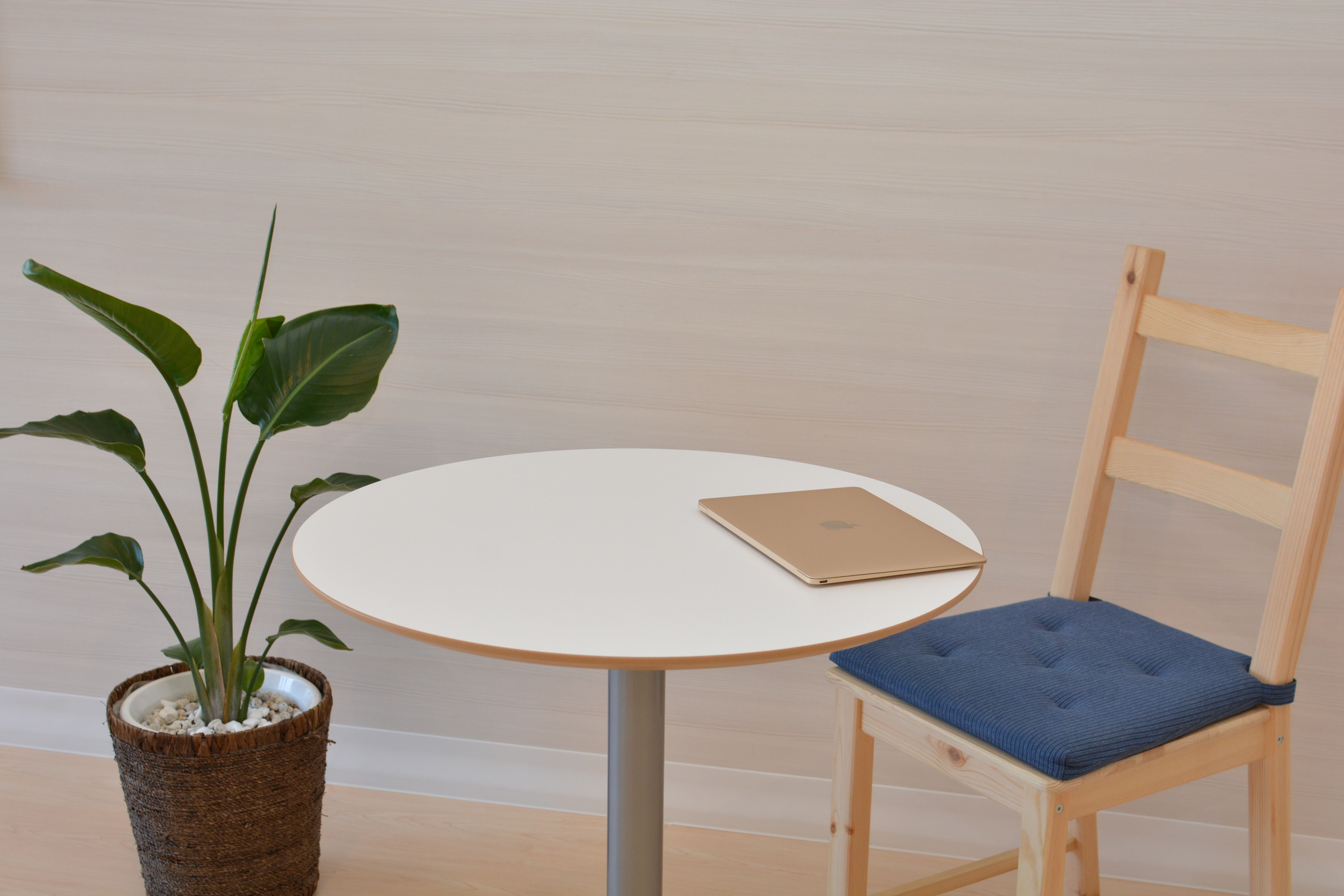
Settings
Number of Layers: 4
Includes the base image. 4 = 1 base + 3 layers.
Final layers
Actual: 4 = 1 base + 3 layers
Processing Complete!
Select a layer to locate it in the original image
Layer 1
Base
Count + custom requirements — extract every person
Pick the count (3), then describe what to extract (e.g. “Output a layer for every person.”) — the prompt never changes the count. Each person becomes its own layer with the background rebuilt.
Original
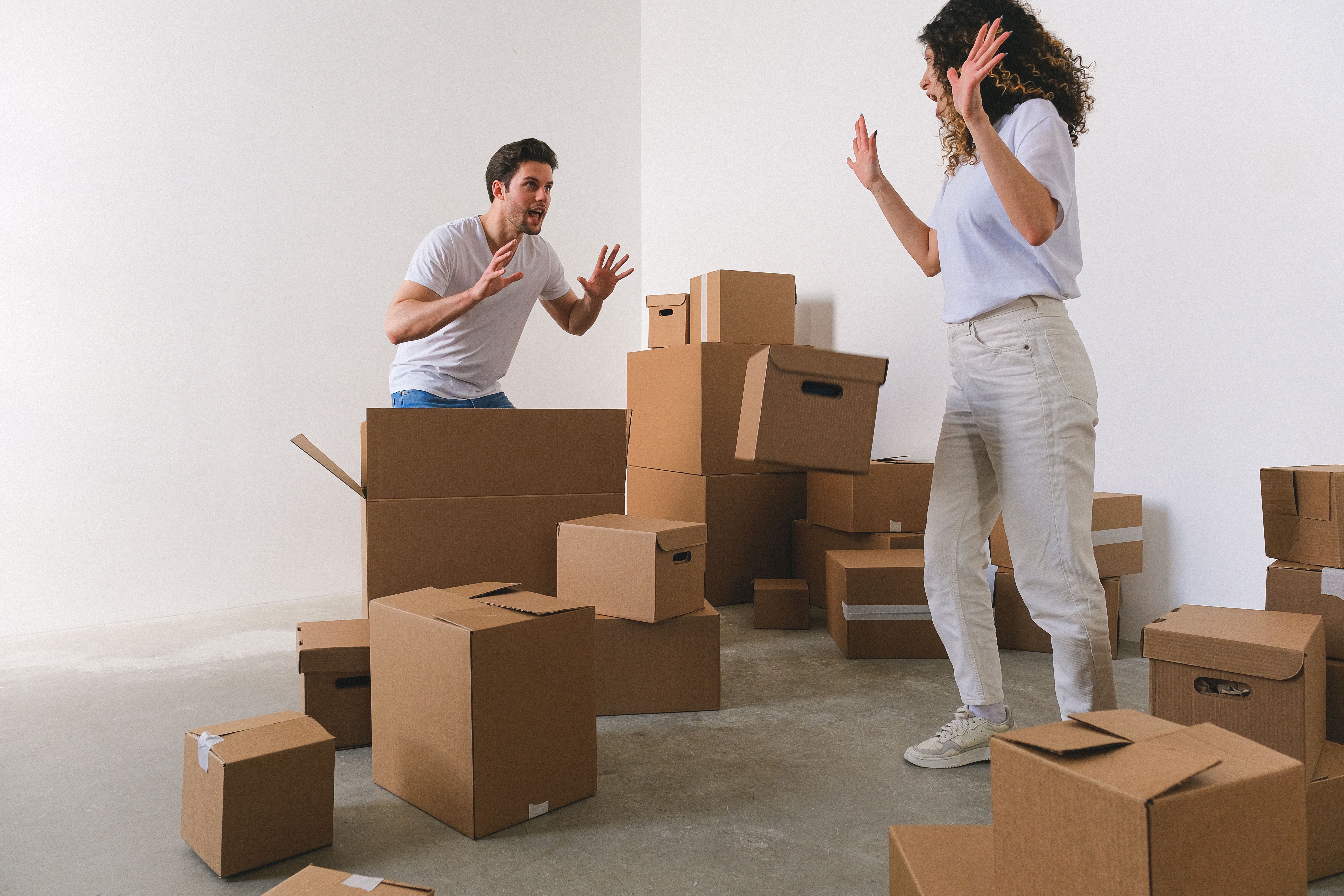
Settings
Number of Layers: 3
Includes the base image. 3 = 1 base + 2 layers.
Custom requirements (optional)
Final layers
Actual: 3 = 1 base + 2 layers
Processing Complete!
Select a layer to locate it in the original image
Layer 1
Base
Where Image to Layers Helps
Practical ways teams use image to layers instead of starting every edit from a single flattened file.
E-commerce product shots
Run image to layers on catalog photos to isolate the product, props, and backdrop. Swap colors, change backgrounds, or build A/B variants without a new photoshoot.
Design & mockups
Designers use image to layers to pull subjects into clean stacks for posters, packaging, and social creatives—faster than hand-cutting every silhouette.
Content & marketing
Marketers convert campaign stills with image to layers so headlines, products, and scenery can be rearranged for different channels and aspect ratios.
Game & illustration assets
Turn concept art or screenshots into separated pieces with image to layers, then refine sprites, UI elements, or comic panels layer by layer.
What You Get from Image to Layers
Understand the output so you can plan edits after conversion.
Image to layers is not just background removal. You receive a stack of RGBA PNGs that approximate a layered project: subjects on their own planes, supporting elements separated when possible, and filled regions where something was previously hidden behind another object.
Independent transparent layers
Each downloadable file keeps an alpha channel. You can hide, reorder, or blend layers without destroying the rest of the composition—the core value of image to layers.
Editable object boundaries
Because elements are split, recoloring a product or relocating a prop is usually a single-layer edit instead of painstaking selection on a flat bitmap.
Reusable for multi-format exports
Once you have layers, export square, story, and banner crops from the same stack. Image to layers front-loads the hard separation work so layout changes stay cheap.
A starting point, not a locked PSD
Treat the result as a strong first pass. For pixel-perfect production, refine edges in your preferred editor—image to layers still saves the longest part of the job.
Ready to try? Scroll up, upload an image, and run image to layers on a real asset from your workflow.
Image to Layers FAQ
Answers about converting an image to layers with AI