
ImageLayered · Blog
How to Make an I Love the Smiths AI Video From Two Photos
Turn two individual photos into an elevator encounter. Learn the exact photo order, built-in role-binding prompt, output settings and checks for a two-person I Love the Smiths AI video.
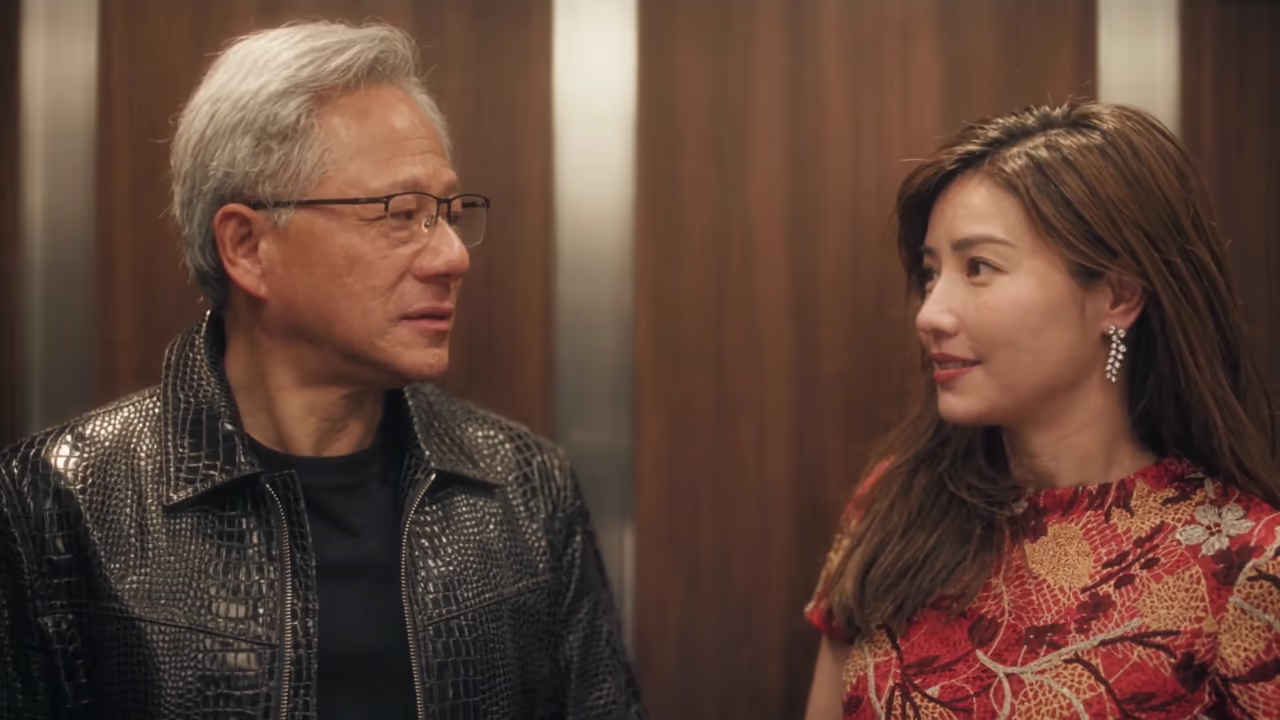
A familiar song, a quick glance, a surprised smile—and then the elevator doors open. The I Love the Smiths AI trend turns that small encounter into a scene starring you and someone you know.
With ImageLayered’s I Love the Smiths AI Video Generator, you upload two separate photos, assign one person to each role, and edit a fixed elevator video. You do not need to build a two-person elevator image first.
This guide explains the photo order, the built-in prompt, the output settings, and what to inspect before downloading. The videos below are the supplied source and imported references; they are not ImageLayered test results.
Watch the elevator scene first
The effect follows a 15-second elevator interaction inspired by the encounter associated with (500) Days of Summer. Watch the source before choosing your photos. Notice who turns, who reacts, and who leaves when the doors open.
The supplied template is already a character remix: the person initially on the left wears glasses and a black leather jacket, while the person initially on the right wears a red patterned dress. These descriptions identify the people to replace. Your photos supply their new faces, hair, body appearance and clothing.
The edit is configured to preserve the original background, camera movement and source audio. It requests the same interaction with your two characters. As with other AI video edits, the finished result needs a visual check.
Step 1: Choose two clear individual photos
Prepare one photo of each person. A clear front-facing or slightly turned face makes the identity reference easier to read. Include the hairstyle and outfit you want the character to keep, and avoid another person standing beside them in the same photo.
Each upload must meet these requirements:
- JPG, PNG or WebP.
- No more than 10 MiB per photo.
- At least 300 × 300 pixels.
- An image aspect ratio between 0.4 and 2.5.
A small, heavily filtered face gives the edit less useful information. If you want a particular jacket or dress in the video, choose a portrait that actually shows it. The prompt asks the reference photo to define clothing as well as identity; it does not ask the tool to keep the source actors’ outfits.
Use photos you have permission to use and share. For a first attempt, two well-lit portraits are an easier starting point than a group picture or a face hidden behind sunglasses.
Step 2: Put each photo in the correct role
Photo order controls the cast. Decide this before you upload.
| Upload | Replaces this source person | Required ending |
|---|---|---|
| Photo 1 | The person initially on the left, wearing glasses and a black leather jacket | Stays inside the elevator |
| Photo 2 | The person initially on the right, wearing a red patterned dress | Follows the original path out of the elevator |
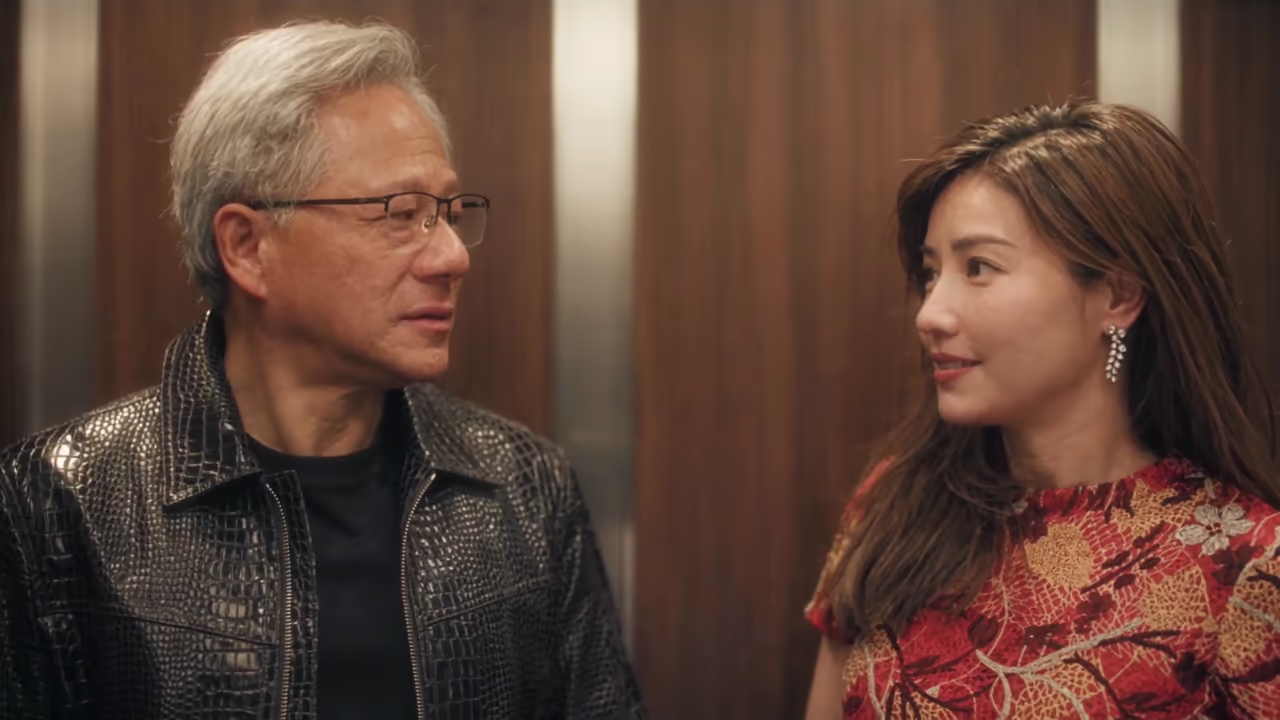
Frame from the supplied source video, shown to explain role assignment.
“Initially left” and “initially right” identify the two original people. The prompt then tracks those people throughout the clip. A turn, a change in distance or a moment of occlusion should not transfer one reference identity onto the other person.
This matters most at the end. If Photo 1 is you and Photo 2 is your partner, the requested result has your partner leave and you stay. To cast the opposite pairing, swap the photos before submitting a new task.
Step 3: Choose a resolution and check the quote
Open the generator, upload both photos and select an output resolution. The scene uses 16:9 framing and a fixed 15-second output. Keeping the full duration includes the door opening and exit instead of cutting the encounter short.
| Resolution | Credits for the complete two-person edit |
|---|---|
| 480p | 600 |
| 720p | 1,200 |
| 1080p | 2,400 |
These are the configured prices for this release. The live quote beside the Generate button is the price to check before you submit. Both characters are included; the second photo does not add a separate character fee.
If you are checking a new pair of photos, 480p is the least expensive available setting. A higher resolution increases output size and detail, but it does not guarantee that identity or motion errors will disappear.
You do not need to paste a prompt. The generator already contains the full role-binding instructions below. Sign in, check your balance and start the task. Keep the page open during upload and any free queue. Once the task is accepted, it can continue in the background.
What the I Love the Smiths AI prompt controls
A two-person edit needs more than “replace these faces.” Both characters must keep their own identity while performing the actions of the correct source person.
The built-in prompt asks for four things:
- Separate identities: Photo 1 defines CHARACTER_1 and Photo 2 defines CHARACTER_2.
- Permanent mapping: each replacement follows one original person through every turn and occlusion.
- Full appearance replacement: faces, hair, body proportions, outfits and accessories come from the corresponding photo.
- A fixed exit: CHARACTER_2 leaves; CHARACTER_1 stays inside until the final shot.
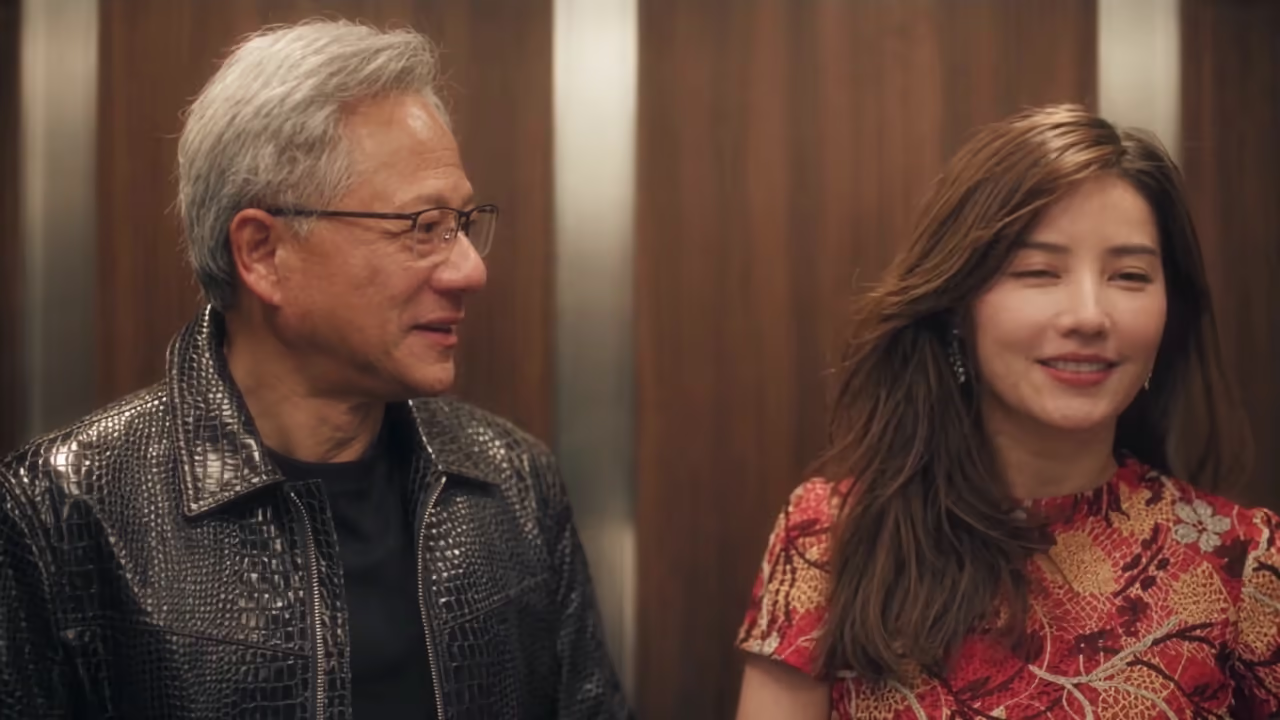
Source-video frame. The prompt requests the original expression timing using the new characters’ own facial features.
The complete prompt is included here so you can see exactly what the scene requests. The two source-appearance descriptions match the supplied template.
@Image1 defines CHARACTER_1; @Image2 defines CHARACTER_2. Each reference is the sole authority for its character's identity, face, hair, anatomy, proportions, clothing and accessories. Keep appearances consistent.

PERMANENT IDENTITY BINDING:
SOURCE_A = the man initially LEFT, wearing glasses and a black leather jacket. Replace SOURCE_A ONLY with CHARACTER_1.
SOURCE_B = the woman initially RIGHT, wearing a red patterned dress. Replace SOURCE_B ONLY with CHARACTER_2.
Track by original identity, never by position, gaze, scale or occlusion. CHARACTER_1 always follows SOURCE_A; CHARACTER_2 always follows SOURCE_B. Never swap, merge, duplicate or transfer actions.

ZERO ORIGINAL FACIAL FEATURES — HIGHEST PRIORITY:
Completely replace BOTH people. NO original facial feature or geometry may remain: no source face shape, hairline, eyebrows, eyes, nose, cheeks, lips, mouth, jaw, chin, ears, skin tone or distinctive marks. Remove original hair, body appearance and clothing too. Never blend, average, morph or partially inherit source and reference appearances. At every angle, each visible face must be entirely its assigned reference-defined face. Transfer expression timing only, using each character's own facial anatomy. No source-face residue, ghosting, double exposure or identity flicker.

STRICT MOTION AND INTERACTION:
Preserve each person's posture, head turns, gaze, eye contact, expression timing, reactions and body orientation. Preserve who looks first, who responds, smiles, timing offsets, distance and relative positions. Each character performs ONLY its mapped source person's actions. Do not invent, omit, reorder or exchange movements.

MANDATORY EXIT ASSIGNMENT:
When the elevator opens, CHARACTER_2 follows SOURCE_B's original path and timing out of the elevator. CHARACTER_1 follows SOURCE_A and remains inside through the final shot. Never swap these roles.

CLEAN INTEGRATION:
Render one fully opaque, stable instance of each character. Keep reference-defined faces consistent in all angles and occlusions. No mixed faces, deformation, duplicates or extra limbs.

BACKGROUND LOCK:
Preserve the elevator, wooden panels, doors, corridor, lighting, framing, camera movement, duration and audio. Do not import either reference background. Edit only the two original people.

CINEMATIC FINISH: Preserve the original lighting design and scene, with refined filmic contrast, soft highlights, rich shadows and natural cinematic color grading. Do not alter background content or action.
The prompt describes the intended result. It is not a guarantee that every frame will follow every instruction. Check the rendered clip, particularly when a face turns away or one person passes in front of the other.
Step 4: Review the full video with sound
When the task finishes, watch it from beginning to end before sharing. A convincing first frame can still be followed by a mixed profile, a changed outfit or an incorrect exit.
Check these details:
- Faces: each person resembles the corresponding uploaded reference during front, side and partially hidden views.
- Appearance: hair, clothing and body proportions remain associated with the same person.
- Interaction: glances, smiles and reactions belong to the correct character and follow the source timing.
- Background: the elevator panels, doors and corridor stay coherent.
- Exit: Photo 2 leaves on the original path; Photo 1 remains inside.
- Audio: the source soundtrack is present and plays correctly through the ending.
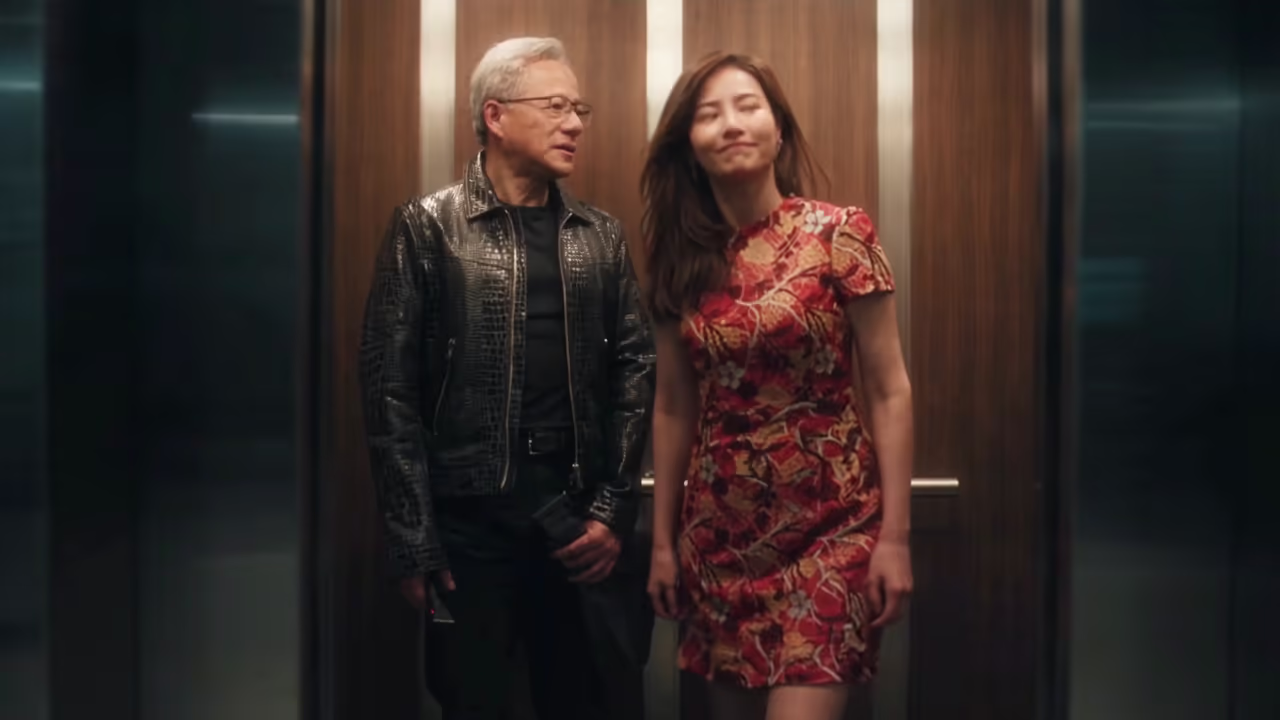
Source-video frame showing the intended exit assignment.
If the result looks right, download the MP4. Completed videos are also saved in Recent generations for 30 days. If your connection drops after submission, try recovering the latest task before starting another one. The tool can restore the latest task from the previous 24 hours.
Failed or timed-out tasks automatically refund the amount actually charged. A completed clip with a creative imperfection is still a completed generation, so inspect the result before deciding whether to try another photo pair.
More I Love the Smiths AI video references
These two clips were imported from the Media.io I Love the Smiths AI reference page. They show other casts in a similar elevator encounter. They are provided as visual inspiration, are not selectable templates in this generator, and were not generated or tested on ImageLayered.
Your generation always uses the user-provided source shown at the start of this guide. The additional examples do not change its cast mapping, actions or ending.
Common questions
Can I upload one couple photo?
This generator requires two separate photo inputs. Prepare one individual reference for each character so the roles remain explicit.
Can I change the dialogue or song?
This workflow is configured to retain the source audio. It does not offer custom dialogue, a song selector or a new voice track. Check that you have the rights needed for your intended use of any music or footage.
Why did the faces or roles change during a turn?
AI video editing can lose identity consistency during profile views, occlusion or movement. Try a clearer reference with visible facial features and check the upload order. The built-in prompt already contains permanent role binding; no prompt can guarantee a flawless result.
Can I change the background or shorten the clip?
The tool keeps this elevator scene and a 15-second output. Its purpose is to replace the two people while preserving the encounter, including the exit. Other video edits need a different workflow.
Where do I start?
Open the I Love the Smiths AI Video Generator, put the person who stays in Photo 1 and the person who leaves in Photo 2, then check the quote and generate.