
ImageLayered · Blog
Sheru Bhai AI Trend: Make Your Own Photos and Videos
Meet the lion boss, copy four original photo prompts, and make a 7-second video with your own portrait. Learn the four scenes, reference roles and ImageLayered’s AI tools.
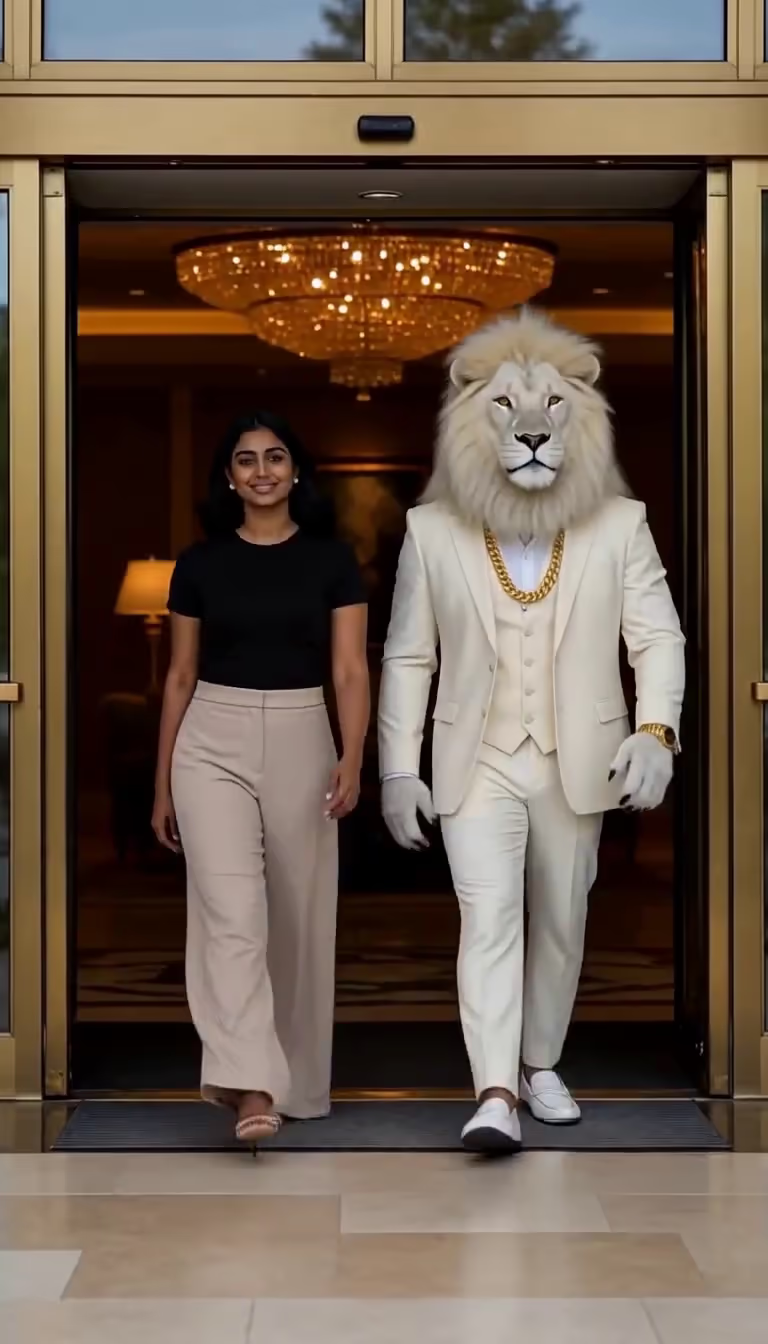
A lion in a white suit walks through a grand hotel entrance. His companion keeps pace beside him as if arriving with a lion boss were an everyday event. That is the appeal of Sheru Bhai: an ordinary entrance turned into an absurdly confident movie scene.
You can join the trend in two ways on ImageLayered. Use GPT Image 2.6 to create a lion portrait or a picture of yourself beside him. Use the Sheru Bhai AI Video Generator to make a short scene with a built-in prompt and one portrait of yourself.
Below are four original photo prompts and a practical video walkthrough. Each prompt card has a Copy prompt button and a shortcut to the matching tool. Photo shortcuts fill in the prompt; video shortcuts select the scene. You still choose your settings and submit the generation yourself.
Make a Sheru Bhai photo · Make a Sheru Bhai video
What is the Sheru Bhai AI trend?
Sheru Bhai is a fictional lion boss used in AI photos and short stories. The familiar ingredients are an imposing lion head, a sharp suit, gold accessories and the confidence to treat an impossible purchase as a routine errand. Some versions use a golden mane; ImageLayered’s video scenes feature a white lion in a white suit.
The character works because you can recognize him before the story starts. The oversized wealth sets up the joke; a short line or gesture delivers it. A palace arrival, an auction bid or a school-office visit can become a complete miniature episode.
Three useful starting points are:
| What you want to make | Start with | ImageLayered tool |
|---|---|---|
| A Sheru Bhai portrait | A description of the lion and his outfit | GPT Image 2.6, Text to Image |
| A photo with Sheru, or your own lion avatar | Your portrait; optionally a saved lion reference | GPT Image 2.6, Image Edit |
| A short video with Sheru, or a transformation | One portrait and one of four scenes | Sheru Bhai AI Video Generator |
Who started the Sheru Bhai trend?
Creator attribution remains unsettled. The origin discussion on sherubhai.co describes competing claims, including those associated with @digitalsheru. We have not independently verified the first creator or first upload. Treat the name as a shared AI character format rather than proof that every clip comes from one account.
Four Sheru Bhai AI photo prompts to copy
Start with one lion design, save the image you like, and reuse it as a reference. That gives the next edit something more precise than “the same lion.” Choose 9:16 in the image tool for a vertical social post.
These are original prompt recipes, not a gallery of tested ImageLayered outputs. The reference frames and videos elsewhere in this guide come from aisheru.com/video; they do not show results from these photo prompts.
1. Create your lion boss
No photo is needed. Open the card’s shortcut to start in Text to Image mode. After generation, save the lion portrait for the next two edits.
Create a realistic vertical character photograph of an original adult anthropomorphic white lion with a broad ivory mane, a natural lion muzzle and calm pale-gold eyes. He stands upright with a humanlike body in a fitted white three-piece suit, open-collar white shirt, a heavy gold chain and one gold wristwatch. Black aviator sunglasses sit slightly low so the eyes remain visible. Show him from the knees up at the entrance of a grand stone residence, one hand resting naturally by his side, the other straightening his cuff. Use warm late-afternoon side light, detailed fur, believable tailoring and a softly blurred background. The mood is composed and quietly extravagant. Keep both hands anatomically plausible. No crown, cartoon styling, lettering, watermarks or visible brand emblems. Compose for a 9:16 portrait.The white mane, suit and accessories define the character. If you change those details later, expect a different interpretation. Consistency is easier when you attach the saved image instead of relying on the description alone.
2. Take a photo with Sheru Bhai
Switch to Image Edit and upload your portrait first, the saved lion image second. The shortcut fills the text; it cannot attach your private photos for you.
Make a realistic posed photograph using two uploaded references. Image 1 supplies the human person: preserve their facial identity, natural skin tone, hairstyle, age and visible outfit. Image 2 supplies only the adult lion boss: preserve his ivory mane, lion face, white suit and gold accessories. Place the human and the lion side by side on a broad terrace outside a stone mansion, standing at a comfortable distance with relaxed shoulders and looking toward the camera. Give each person a separate complete body and keep both faces unobstructed. Match the direction of warm daylight, perspective, scale and contact shadows. Build a new terrace background rather than copying either reference background. Keep the human fully human and the lion fully lion; never blend their faces or move the mane onto the person. Do not add text, logos, extra people or extra fingers. Vertical 9:16 composition.Assigning each reference one role helps prevent the lion’s features from leaking onto your face. If your priority is recognizable human identity, this is a better concept to start with than a full lion transformation.
3. Share the back seat with the boss
Use the same two references in the same order. A wider camera position gives the model room to show two separate faces and bodies.
Create a realistic vertical photograph inside the spacious rear cabin of an unbranded luxury car. Use Image 1 for the human passenger, preserving their face, hairstyle, skin tone and outfit. Use Image 2 for the white-lion boss, preserving his exact lion design, ivory mane, white suit and gold jewelry. Seat them in two distinct positions on the rear bench, both facing a camera placed toward the front of the cabin. Frame both heads and upper bodies clearly, with a visible gap between their shoulders. The human smiles naturally; the lion has a calm, self-assured expression. Show tan leather seats, soft window daylight and a city softly blurred outside. Keep the cabin proportions believable, seat belts and hands coherent, and both faces in focus. No champagne, weapons, brand badges, captions or watermarks. Neither identity should merge with the other. Compose for 9:16.If one face is hidden, ask for a wider cabin view before adding more props. A crowded scene makes the identity and anatomy problems harder to diagnose.
4. Turn your portrait into a lion avatar
Upload one clear portrait in Image Edit. This prompt changes the face into a lion, so recognizable details may carry through without preserving your exact human likeness.
Use Image 1 as the identity guide for one adult anthropomorphic white-lion avatar. Interpret the person's brow shape, eye spacing, expression and face proportions as a coherent lion character with a natural muzzle, ivory fur and a full mane. Where visible, translate hairstyle details into the mane and facial-hair details into subtle whisker markings. The result must have one integrated lion face, not a human face pasted on fur or a removable animal mask. Dress the avatar in a tailored white three-piece suit with a gold chain and a single gold watch, standing on a red carpet outside a warmly lit palace at dusk. Keep a relaxed upright pose and realistic hands. Use cinematic but natural lighting and detailed fabric and fur. Do not copy the portrait background, add other characters, introduce text or create brand logos. Vertical 9:16 framing. Preserve recognizable cues where possible while allowing a complete lion transformation.A transformation asks the model to reinterpret identity. If the result feels too generic, try a clearer portrait with visible eyes and less face obstruction. A higher resolution alone cannot restore missing identity cues.
How to make a Sheru Bhai AI video
The Sheru Bhai AI Video Generator provides four scenes. Every scene requires one portrait. You do not need to generate a separate lion image first: the source scene already supplies Sheru and the setting.
Step 1: Choose how you join Sheru
The configured output is 7 seconds with portrait 9:16 framing. Source clips are approximately 6.58 seconds long. The workflow requests the complete action followed by a brief natural hold at the end. The source files are 768 × 1344, so output framing can vary with the model’s portrait mapping.
| Scene | Who your photo replaces | What stays in the scene |
|---|---|---|
| Boss Entry | The human initially on Sheru’s left | The white lion and hotel entrance |
| Money Rain | The human initially on Sheru’s right | Sheru, the celebration and falling notes |
| Deal Done | The seated human initially on the left | The lion on the right and their handshake |
| Sheru Transform | The human before and during the transformation | The final fictional white lion and palace reveal |
In the first three scenes, you remain human beside Sheru. Your face, hair and outfit replace the sample human’s appearance. The lion is protected as a separate character. In Transform, your portrait defines the starting human; the final lion uses the scene’s fictional Sheru appearance. It is not a promise of your exact face on a lion.
Step 2: Upload one clear portrait
Upload one JPG, PNG or WebP of up to 10 MiB. The photo must be at least 300 × 300 pixels, with a width-to-height ratio between 0.4 and 2.5. Use a clear photo of one adult, with a visible face, hairstyle and the outfit you want to wear. The participant can be any adult gender.
For Boss Entry, Money Rain and Deal Done, the prompt asks for your appearance and clothing while preserving the sample person’s performance. It does not copy your photo background. In Transform, the starting human uses your appearance, then becomes the original white-suited Sheru character.
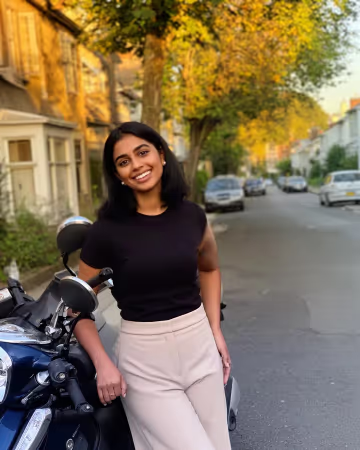
Imported AI sample portrait from aisheru.com. Upload your own photo in the tool to replace this human participant.
Step 3: Choose a resolution and check the quote
| Output resolution | Credits for one complete 7-second video |
|---|---|
| 480p | 280 |
| 720p | 560 |
| 1080p | 1,120 |
These are ImageLayered’s configured prices as of November 16, 2026. The required portrait is included. Check the live quote beside the generation button before submitting. Photo generation has its own quote, which changes with quality, resolution, format and reference count.
The video workflow uses Wan 3 video editing and preserves the source sound. It does not offer a custom dialogue field. Listen to the source preview before choosing the scene, then review the audio in the result.
Sign in, check the photo and start the task. Keep the page open during upload and any free-account queue. Once a task is accepted, it can continue in the background. If the connection drops, recover your latest task before submitting another one.
Step 4: Review the result and download
Watch the entire clip with sound. In the first three scenes, your human identity should stay separate from Sheru’s lion face. Check your hair and outfit across movement, especially when notes cover the face in Money Rain. For Deal Done, examine the handshake and the profile view. For Transform, check that the starting person changes into one lion without duplicate bodies or a leftover sample face.
Download the MP4 when you are satisfied. Completed videos are available in Recent generations for 30 days, and the tool can recover the latest task from the previous 24 hours. Failed or timed-out tasks refund the amount charged; a completed video can still have creative imperfections.
Two Sheru Bhai AI video prompts, explained
The following players show imported reference videos from aisheru.com/video. That site attributes its examples to MiniMax H3 through YIR. These are not ImageLayered or Wan 3 test outputs. Our tool uses them as source scenes for a new video edit with your portrait.
The prompt cards contain our complete built-in instructions. You can copy them to inspect or adapt elsewhere. Open this scene selects the matching template on ImageLayered. Upload your portrait there; you do not need to paste the prompt.
Boss Entry: keep you human and Sheru separate
The human on the left walks beside Sheru through a hotel entrance. The prompt assigns your portrait only to that human, including their hair and clothes. It protects the white lion instead of applying your face to both characters.
Image 1 identifies the ONE human participant to insert into Video 1. Match the reference person's facial structure, eye shape and spacing, brows, nose, mouth, skin tone, apparent adult age, hairline, hairstyle, hair length, facial hair and visible personal accessories. Keep this one identity stable through profiles, motion, smiles, partial occlusions and changing camera distance. Replace the assigned sample human's entire visible appearance, hair, body proportions and outfit with the reference person's appearance and clothes, adapting the outfit naturally to the original poses. If trousers or shoes are absent from Image 1, extend the visible outfit coherently with plain neutral lower garments. Do not import the photo background. Preserve the source performance and gaze using the reference person's own anatomy. No pasted face, face blending, residual sample-person features, identity flicker or duplicate uploaded people. The reference person may be any adult gender; do not inherit the sample actor's gender or body shape.

BOSS ENTRY, ONE CONTINUOUS ENTRANCE: Replace ONLY the dark-haired adult woman on the LEFT of the white lion, wearing a black short-sleeve top and beige trousers in the source. Image 1 becomes this human participant. At 0-2s the pair step out through the hotel's gold-framed glass doors; at 2-4s they walk toward the camera side by side; at 4-6.58s the camera sees them closer, smiling, still in their original left/right order. Keep the uploaded person's own outfit throughout, preserve their unhurried stride and natural arm swing, and keep their head and feet connected to the same body. Sheru stays to the human's RIGHT. Keep the door frame, chandelier lobby, entrance floor and camera approach. Exactly one reference-derived HUMAN and one original WHITE LION; never make a second Sheru or exchange their faces.

PROTECTED SHERU: the large adult anthropomorphic white lion, full ivory mane, gold chain and wristwatch, tailored white three-piece suit. Preserve his exact source lion face, white fur, mane, muzzle, costume, accessories, body scale, gestures and expressions. Do NOT apply Image 1 to Sheru, turn him into the uploaded human, copy his lion head onto the human participant or swap their roles. Screen position is only a starting cue; follow the original human's identity throughout. Keep background bystanders unchanged.

Edit the supplied Video 1; do not generate an unrelated scene. Preserve its original shot order, actual cuts, camera motion, framing, gestures, timing, light, shadows, furnishings, background people and prop trajectories. Generate seven seconds: follow the complete approximately 6.58-second source, then briefly hold the natural ending for the remaining fraction; do not add a new cut, plot beat or extra action. Keep both featured characters in the portrait framing, with their original positions and relative scale. Do not crop either face at the frame edges. Preserve the original audio track and its synchronization; do not invent new dialogue, a new speaker, new music or subtitles. Keep hands anatomically coherent, grip contact plausible, feet grounded, clothing temporally stable, reflections consistent, and objects in front of the correct person. No extra limbs, merged hands, transparent bodies, extra uploaded identities, added text, logos or watermarks.
Money Rain: preserve identity through the falling notes
The human on the right throws notes into the air. The difficult moment is the brief obstruction of the face: the same person should reappear afterward, with their original hair and outfit. The prompt keeps the lion on the left unchanged.
Image 1 identifies the ONE human participant to insert into Video 1. Match the reference person's facial structure, eye shape and spacing, brows, nose, mouth, skin tone, apparent adult age, hairline, hairstyle, hair length, facial hair and visible personal accessories. Keep this one identity stable through profiles, motion, smiles, partial occlusions and changing camera distance. Replace the assigned sample human's entire visible appearance, hair, body proportions and outfit with the reference person's appearance and clothes, adapting the outfit naturally to the original poses. If trousers or shoes are absent from Image 1, extend the visible outfit coherently with plain neutral lower garments. Do not import the photo background. Preserve the source performance and gaze using the reference person's own anatomy. No pasted face, face blending, residual sample-person features, identity flicker or duplicate uploaded people. The reference person may be any adult gender; do not inherit the sample actor's gender or body shape.

MONEY RAIN, ONE CONTINUOUS CELEBRATION: Replace ONLY the dark-haired adult woman in the black top standing on the RIGHT of Sheru, behind the foreground table. Image 1 is this human participant. At 0-1.5s the human holds a stack of fictional notes in both hands near waist level; around 1.5-2.5s the human lifts both arms and tosses the notes upward; around 2.5-4.5s the notes fall in front of and behind both characters while the human looks up smiling and the original lion laughs; around 4.5-6.58s the human lowers their arms as notes settle. Preserve the upload's identity even when notes briefly cover the face or hair, and re-reveal the SAME person afterward. Sheru stays on the LEFT, with his original lion face and white suit. Preserve the golden lantern street, bystanders, table, dishes and note movement; do not replace them with an office or invent readable currency designs. Keep the original throw trajectory and finger positions, without fused hands or banknotes glued to skin.

PROTECTED SHERU: the large adult anthropomorphic white lion, full ivory mane, gold chain and wristwatch, tailored white three-piece suit. Preserve his exact source lion face, white fur, mane, muzzle, costume, accessories, body scale, gestures and expressions. Do NOT apply Image 1 to Sheru, turn him into the uploaded human, copy his lion head onto the human participant or swap their roles. Screen position is only a starting cue; follow the original human's identity throughout. Keep background bystanders unchanged.

Edit the supplied Video 1; do not generate an unrelated scene. Preserve its original shot order, actual cuts, camera motion, framing, gestures, timing, light, shadows, furnishings, background people and prop trajectories. Generate seven seconds: follow the complete approximately 6.58-second source, then briefly hold the natural ending for the remaining fraction; do not add a new cut, plot beat or extra action. Keep both featured characters in the portrait framing, with their original positions and relative scale. Do not crop either face at the frame edges. Preserve the original audio track and its synchronization; do not invent new dialogue, a new speaker, new music or subtitles. Keep hands anatomically coherent, grip contact plausible, feet grounded, clothing temporally stable, reflections consistent, and objects in front of the correct person. No extra limbs, merged hands, transparent bodies, extra uploaded identities, added text, logos or watermarks.
For the other scenes, the full prompt library is available on the tool page. The scene buttons select a template; they never start a paid generation automatically.
Fixing the most common problems
| What you notice | What to try next |
|---|---|
| The lion looks different in each photo | Attach the same saved lion reference and keep the outfit description consistent. |
| Your face turns partly into a lion in a two-person photo | Keep the human and lion in separate references and explicitly assign their roles. |
| Your avatar does not look enough like you | Use a clearer portrait or choose the human-beside-lion concept instead of transforming the face. |
| A sign, badge or small label is garbled | Request no lettering or brand marks; add final typography in an editor afterward. |
| Audio or mouth movement looks wrong | Compare the result with the source preview. This workflow preserves source sound and has no custom dialogue field. |
| A video has the wrong role | Check the template: left human for Boss Entry and Deal Done, right human for Money Rain; Transform has a separate human-to-lion sequence. |
For a different kind of movement, Animate Image offers a separate photo-animation workflow. It does not automatically reproduce these Sheru scenes or guarantee a particular spoken line.
Frequently asked questions
Is Sheru Bhai a real person?
The lion boss discussed here is an AI character. A fictional character does not have a verifiable real-world age, fortune or biography just because a caption gives him one.
Which ImageLayered tool should I use?
Use GPT Image 2.6 for still images and editable photo prompts. Use the Sheru Bhai AI Video Generator for the four fixed 7-second scenes. The video tool uses Wan 3 video editing; the photo tool is a separate image workflow.
Do I have to upload a photo?
Text-only lion portraits need no upload. The photo edits need the references described above. Every Sheru video scene requires one portrait of you.
Can I paste any prompt into the Sheru video generator?
The video tool uses a built-in prompt for each scene. You can read and copy those prompts, select a scene and upload your portrait. Source audio is preserved; there is no custom dialogue control. To write your own still-image concept, use the editable prompt field in GPT Image 2.6.
Can I create a longer story?
Each Sheru generation is one 7-second scene. You can make separate clips and join downloaded videos in an editor, but continuity between independently generated clips is not guaranteed.
Are the videos in this article actual ImageLayered results?
They are imported references from aisheru.com/video. The cover is an extracted source frame, and the inline portrait is its AI sample input. We have not presented them as successful generations from the prompts in this article.
Where should I begin?
For a first photo, use Create the white-lion boss above and save the result. For a video alongside the lion, open Boss Entry and upload your portrait. For a human-to-lion sequence, open Sheru Transform.
References and media notes
This guide takes inspiration from the photo-and-video tutorial format of Renoise’s Sheru Bhai trend article. The wording, photo prompts, tool recommendations and operating instructions here are written for ImageLayered. The two video prompts are ImageLayered’s built-in scene instructions.
Video sources, AI sample portrait and extracted AVIF stills: aisheru.com/video. Creator attribution remains unverified. The article’s prices describe ImageLayered, and its source previews do not establish the quality of a new generation.
About the author
ImageLayered Team
Practical image and video guides from the ImageLayered team.